
What are projects?
Projects are personal playlists, created by users within their own account, that only they can view and listen to, although they can be shared with others via email, Facebook or X if the user wishes.
Users create their own projects and add tracks on the front end of the site. As an admin you can also add tracks to a user’s project, or create a brand new project for a user containing the tracks you’d like them to hear.
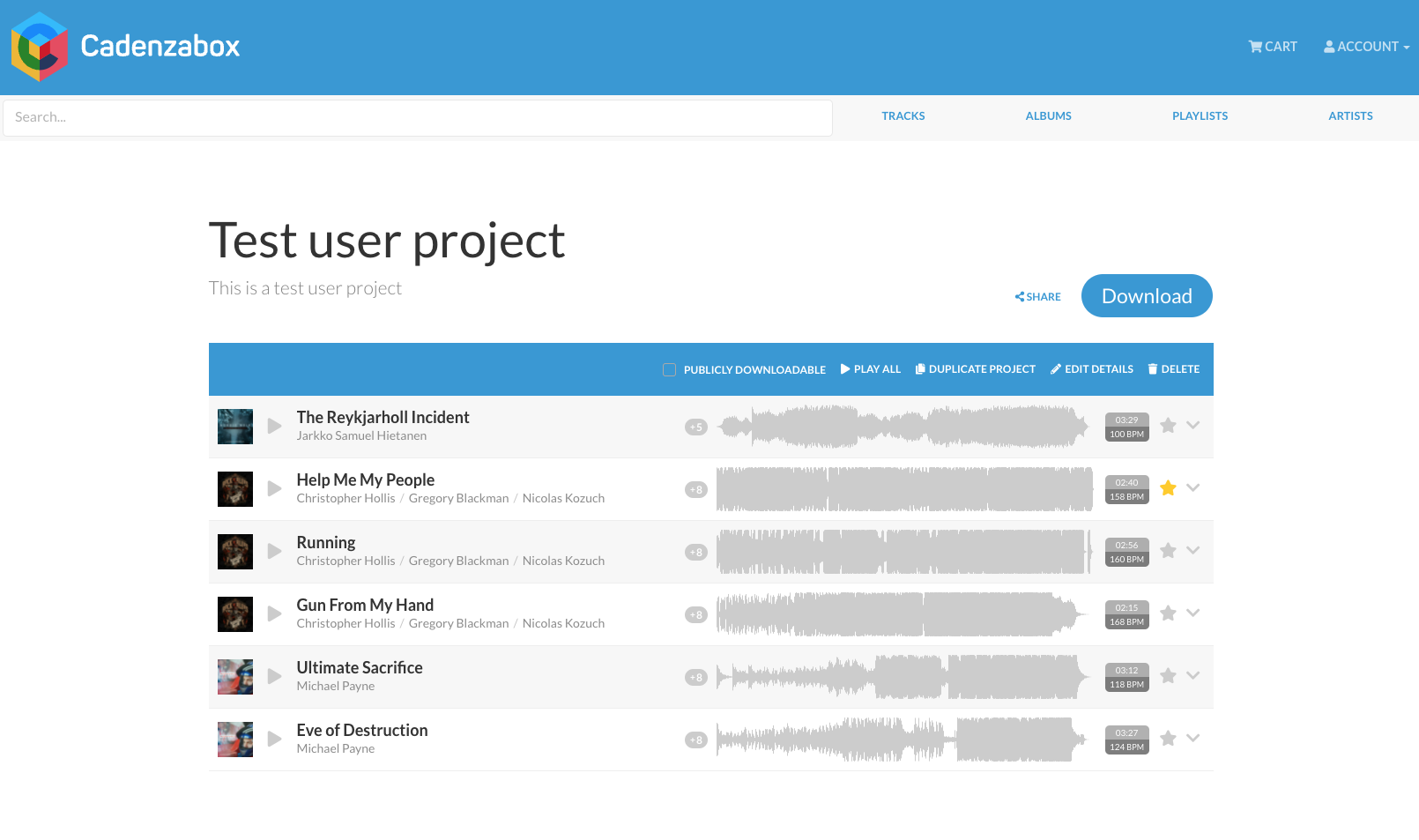
Create a project for a user via the admin
- Log into the admin
- Navigate to Catalog > Projects
- On the top right of the page, click the + icon
- In the edit panel, give the project a Title and, optionally, a Description
- In the Owner field add the user you’d like to assign the project to (when typing, the user name/email should appear as an autocomplete result)
- Add tracks in the Tracks field by typing their titles and selecting them
- Tick Publicly downloadable if anyone with the link should be able to download the project without signing in
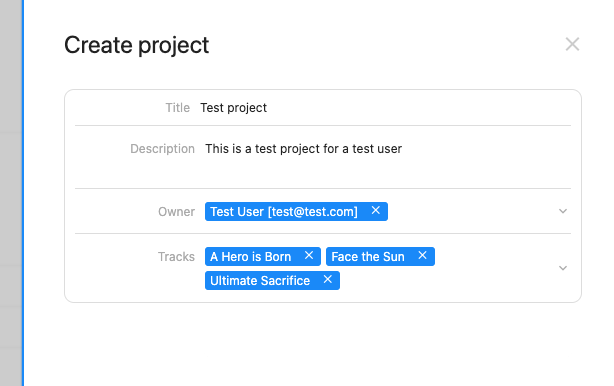
- Save the project
The project has now been created for the user; let them know you’ve created it for them.
The user will see the project in their projects list in their account, and you can also send them a direct link. In the projects list in the admin, open the project with the pencil icon and click Copy URL next to the URL field, e.g. https://demo.cadenzabox.com/projects/61f035d7cbb6b7001881e507.
Add track(s) to an existing project via the admin
Though users can add tracks to their projects via the front of the site, there may be a use case where you want to add tracks to a user’s project for them, or create a project with tracks and then reassign the owner to a certain user (see below). You can also batch select a number of tracks from the admin to add to a project in one go.
- Log into the admin
- Navigate to Catalog > Tracks, or if you want to select a number of tracks from a certain album, navigate to Catalog > Releases
- Tick the left hand checkbox of the track(s) you want to add to the project
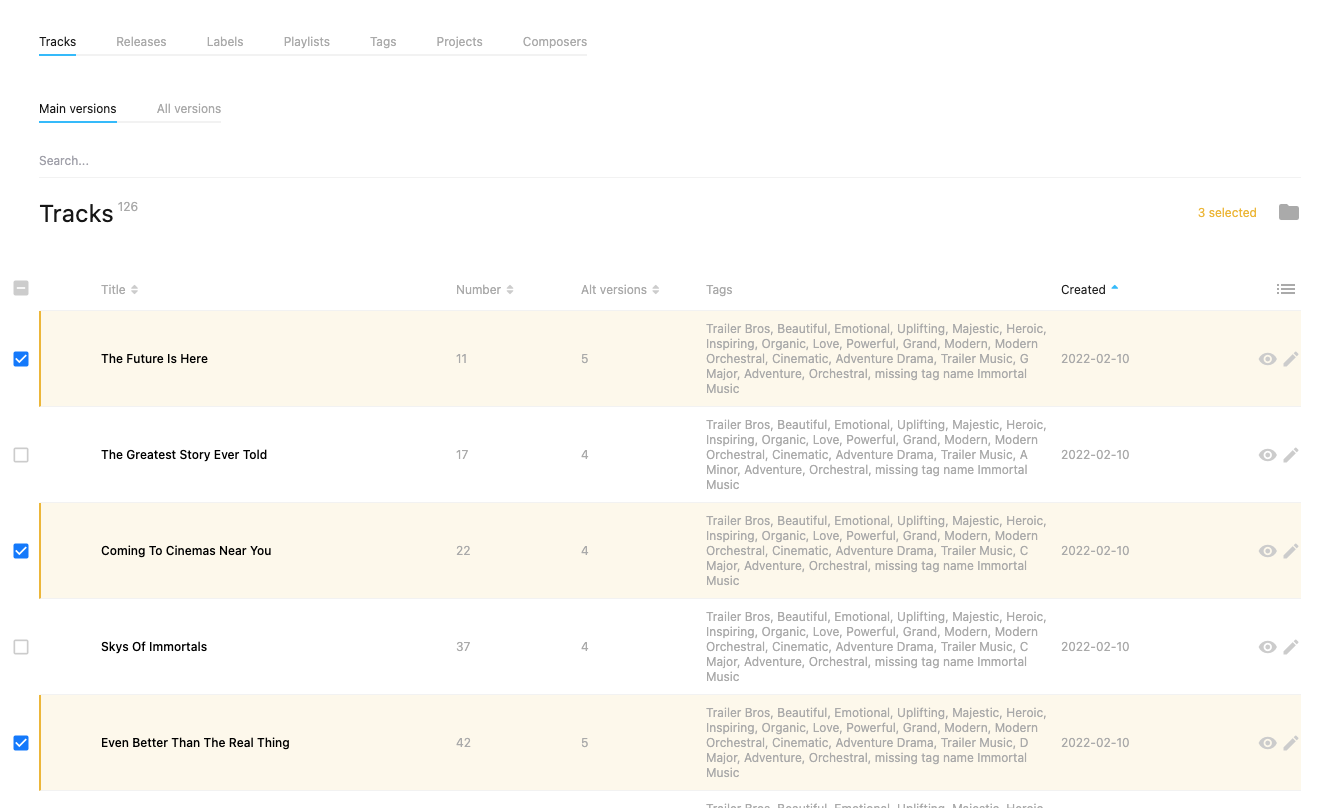
- On the right hand side of the page, select the folder icon
- In the panel that opens, choose the Projects tab
- Select the project you’d like to add the tracks to
Changing project ownership
If you want to change the owner of a project, meaning that on the front end when that user has logged in and looks at their list of projects, the changed owner project would also appear here.
- Log into the admin
- Navigate to Catalog > Projects
- Search for the project whose owner you’d like to change
- Click on the edit pencil icon of the project
- In the Owner field, remove the current owner/user of the project and add the user you would like to have ownership
- Save the project
The project is now owned by someone else. The new owner will see it in their projects list (and the former owner will not); let them know it is available to them.