
How to export your metadata
- Log into the admin
- Navigate to Catalog > Releases and search for the album you want to export, or to export an entire label navigate to Catalog > Labels
- Hover over the row and choose the export icon for the format you want. Releases offer three icons: Metadata export (Cadenzabox CSV), Harvest Media metadata export and SourceAudio metadata export. Labels offer Metadata export only.
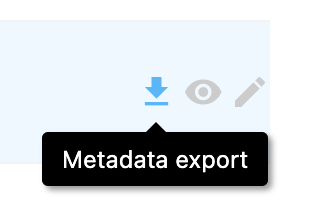
- The file is generated and downloads straight away
- To export several releases or labels at once, tick their checkboxes and use the download icon that appears in the table header
Export options / formats
Track metadata can be exported via various groupings, for example…
- A single release (album)
- A label (all the albums assigned to that label)
- A selection of releases or labels, ticked in the list
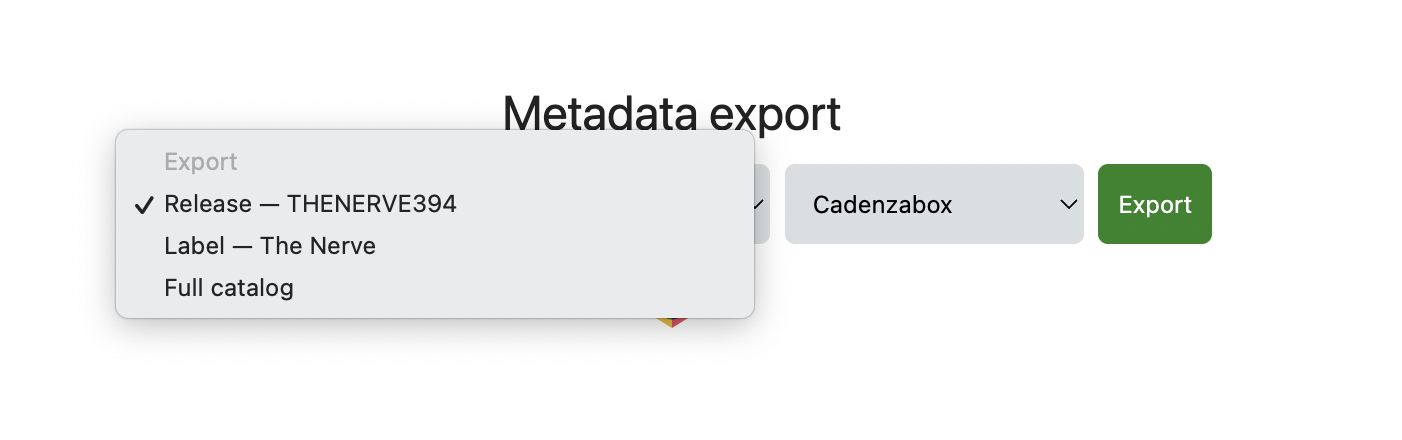
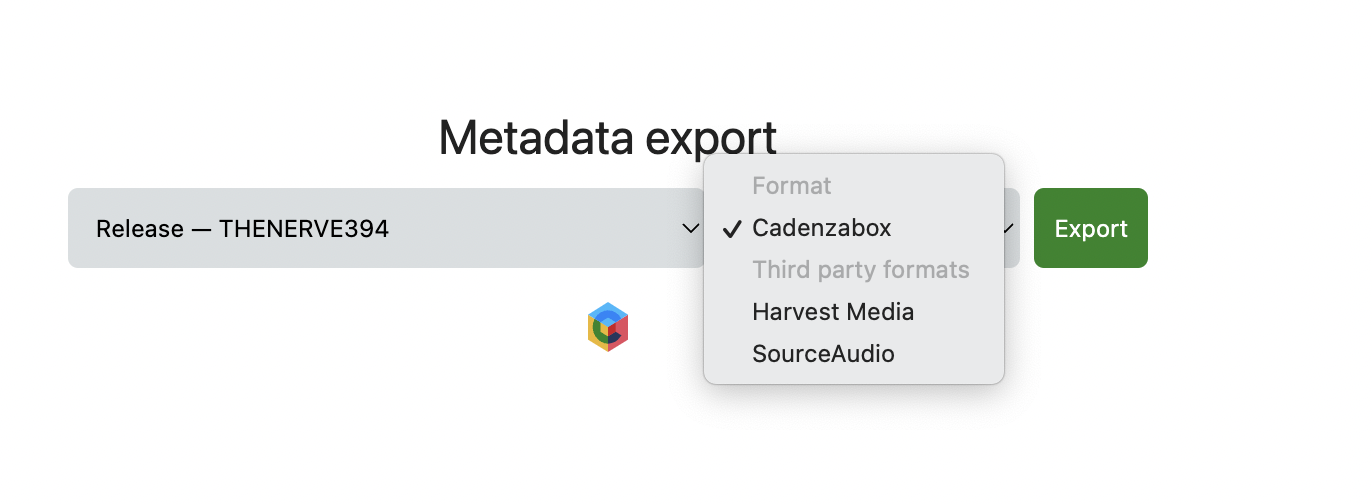
Formats available for export include…
- Cadenzabox — CSV. Available for releases and labels
- Harvest Media — a TSV
.txtfile (tab separated values). Releases only - SourceAudio — CSV. Releases only
Other export formats
If there is another export format that you would like to see, please get in touch.
We’ve built a variety of customer specific export formats to help reduce time consuming manual data post processing.
Exporting issues
If for any reason the export fails, there may be a small issue with your metadata, or we may need to extend our export tool. If this happens please get in touch letting us know the error message you’re seeing, and what it is you’re trying to export, and we’ll take a look.