Overview
Figaro learns your tag taxonomy and will make suggestions, improving your catalog’s tag metadata, which in turn improves the relevance of your client’s searches.
Over time, working from your suggestions, Figaro learns how you use tags. Alongside improving consistency, this can also vastly reduce the manual effort of tagging by offering rich suggestions for any new catalog yet to be tagged.
Setup
Automatic tagging is an optional, paid integration. To enable this feature, please get in touch with the Cadenzabox team.
Load catalog into Figaro
Once your Figaro integration is set up, Figaro will initially load your entire catalog, and then each hour will check Cadenzabox for any new catalog you may have added, or existing catalog that has been updated.
Review suggested tags
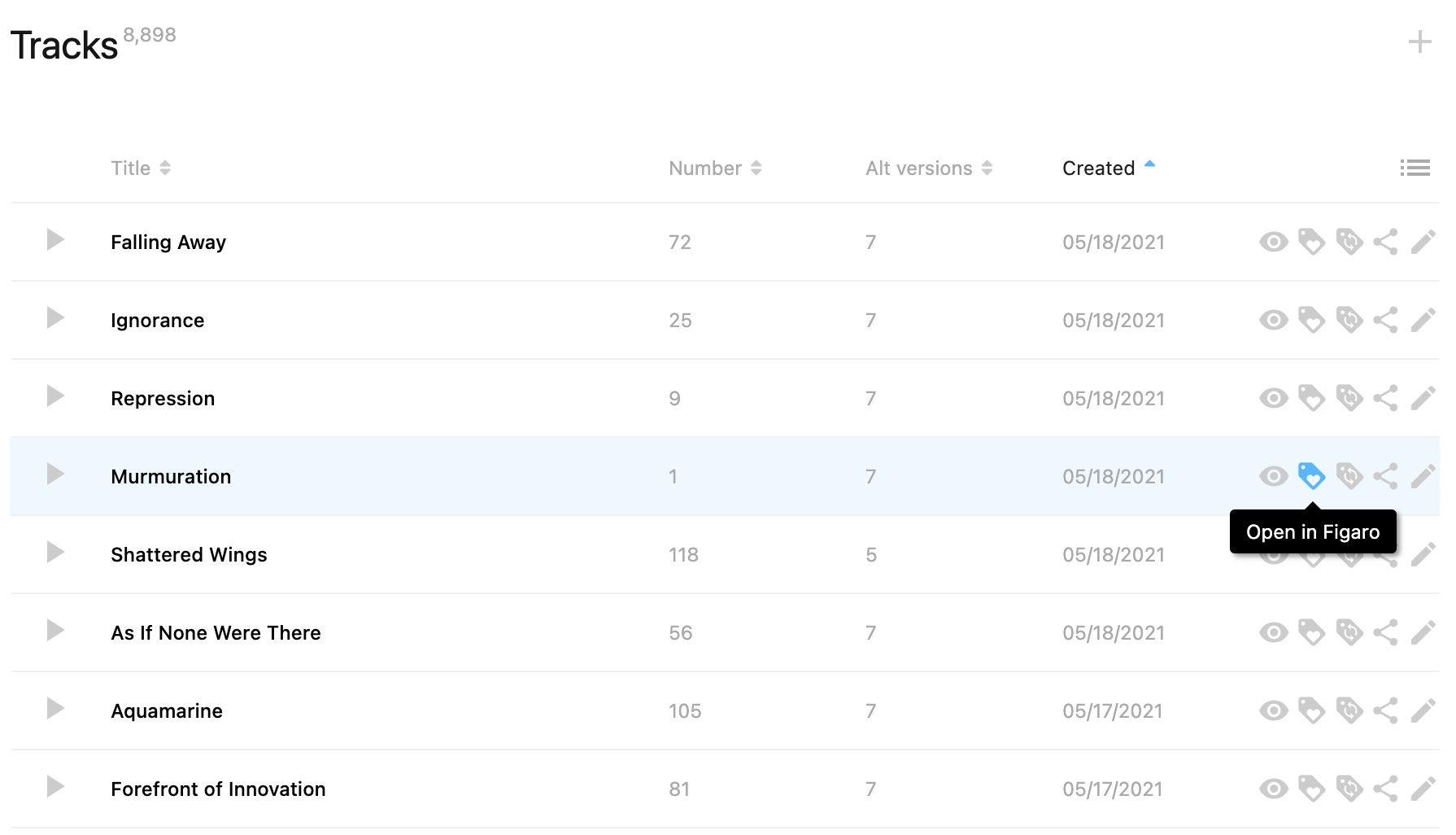
Each track and release in the admin interface has an “Open in Figaro” button.

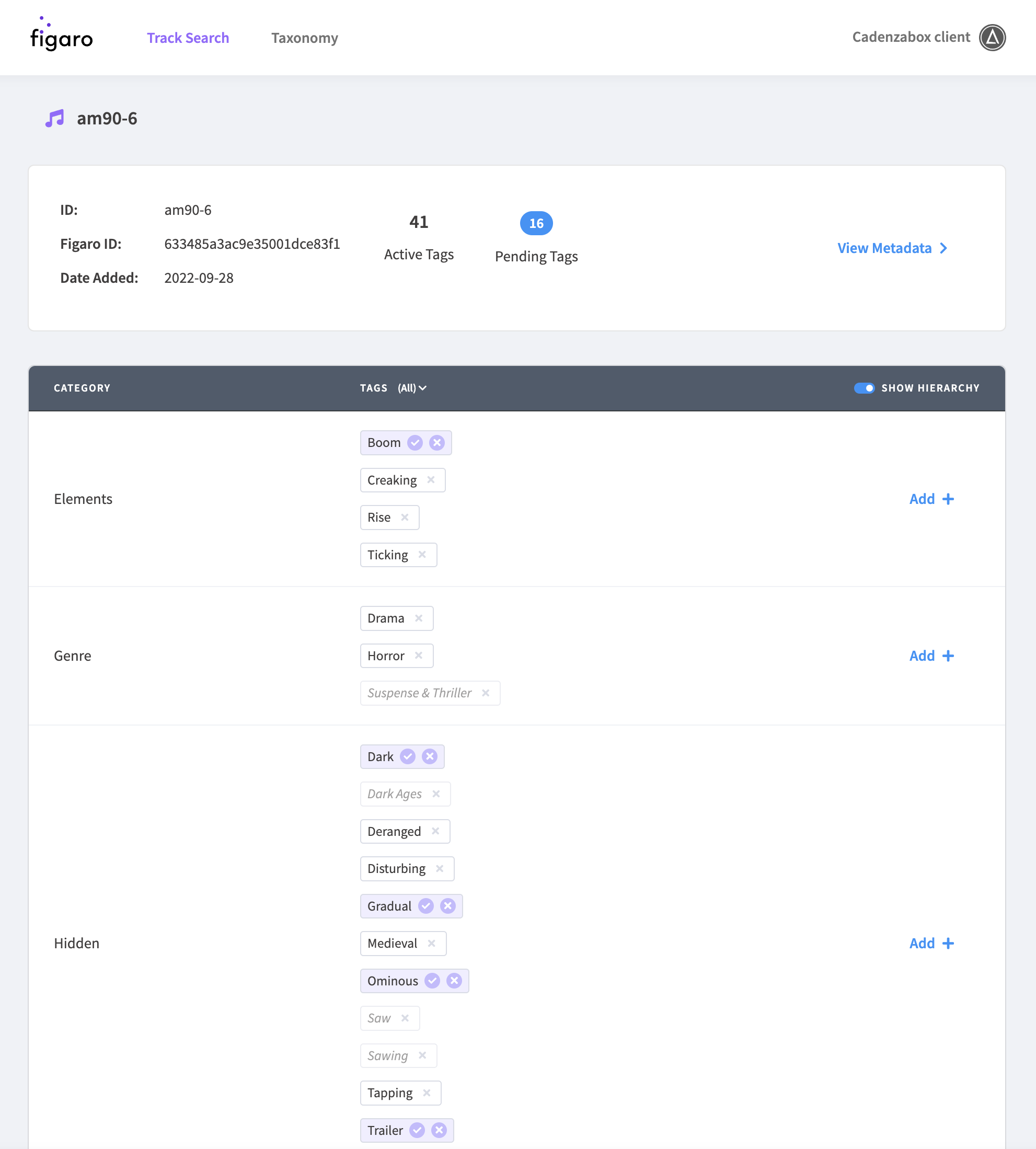
Choosing “Open in Figaro” from a track will jump you to that exact track within the Figaro admin interface where you can review (accept or reject) tag suggestions prior to syncing the revised tags back into Cadenzabox. Please note that tags are managed separately for mains and their nested versions.

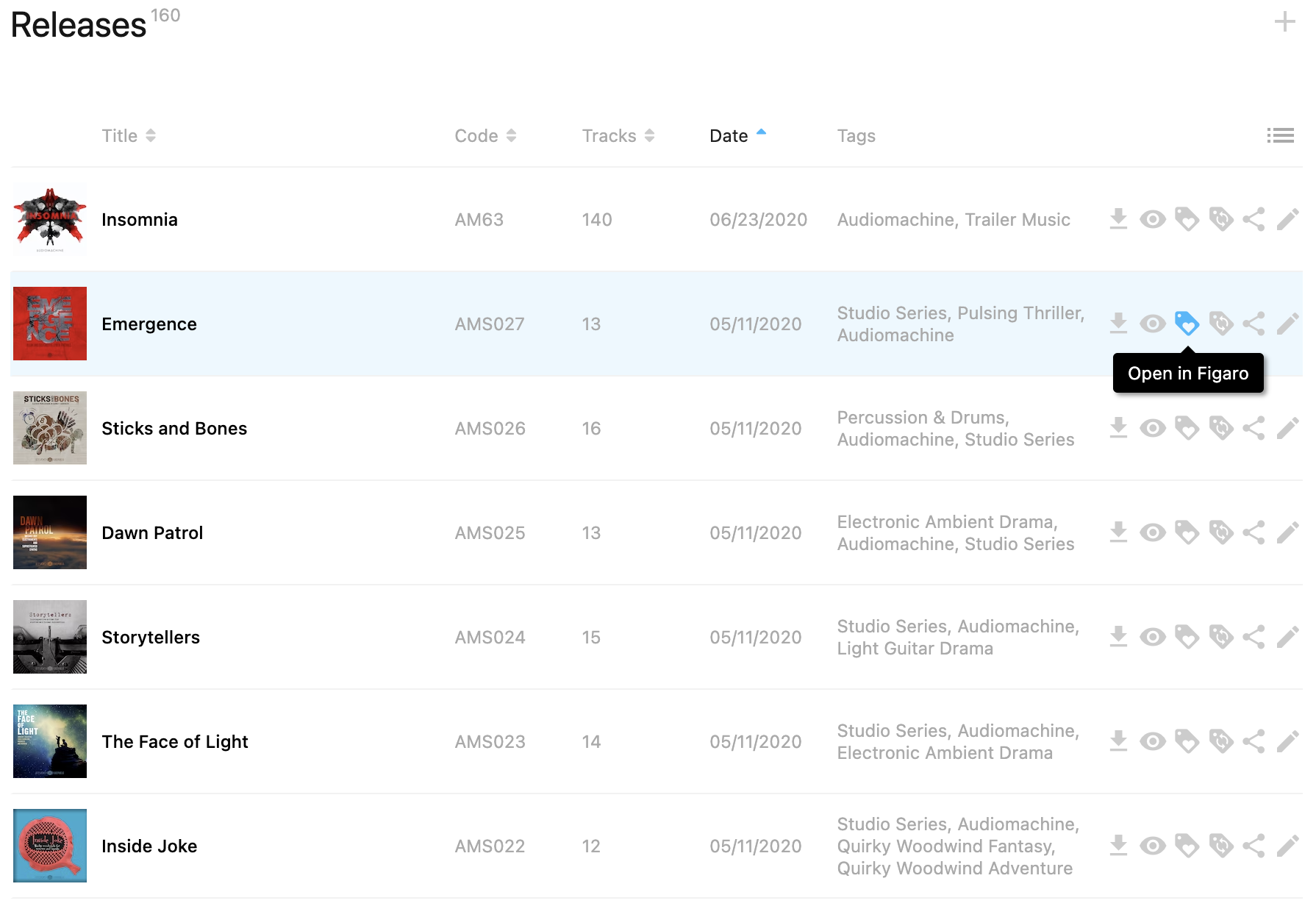
You can alternatively open the Figaro interface from the releases level for a more zoomed out overview of Figaro’s autogenerated tag suggestions.

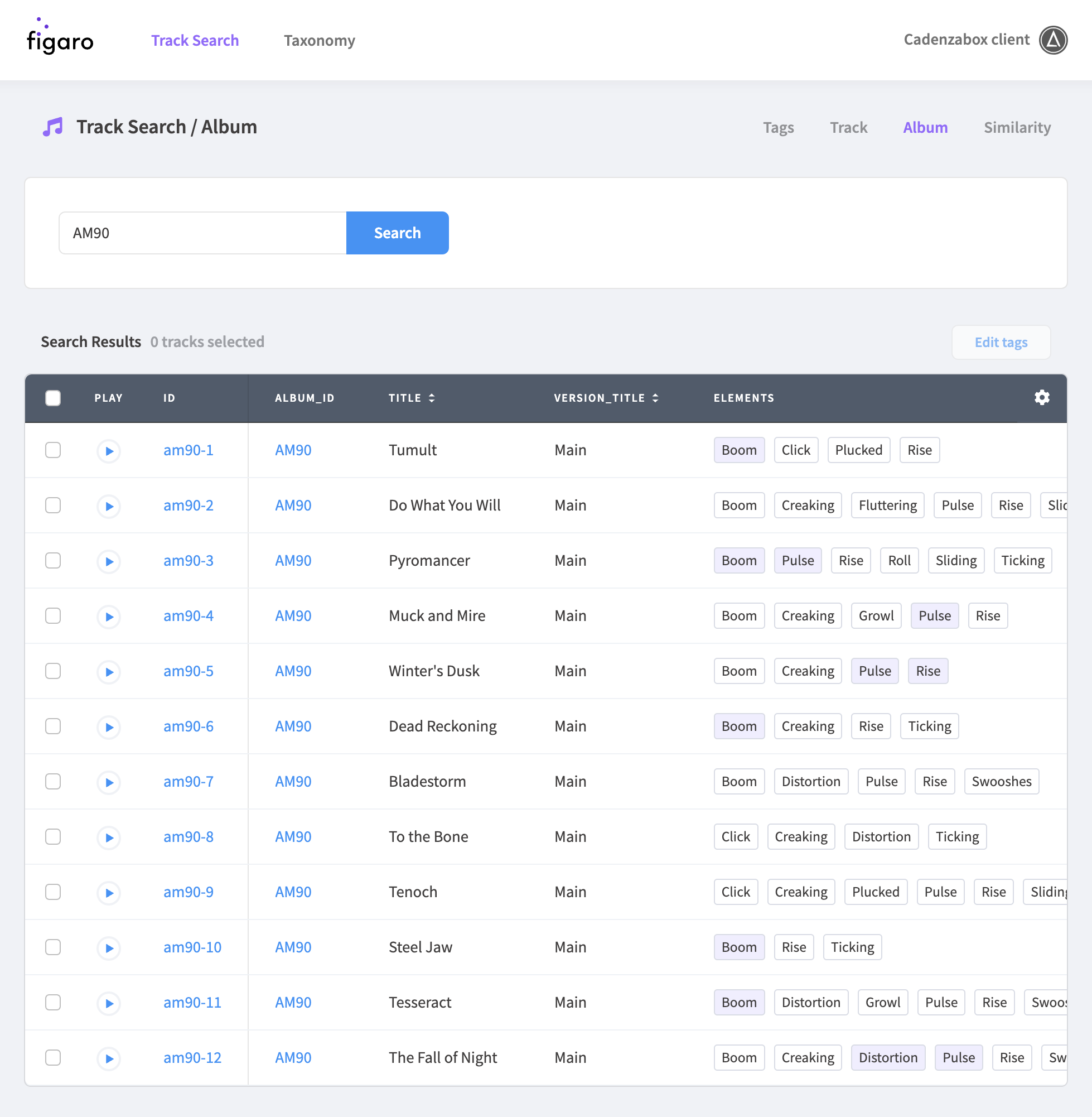
Choose tag categories to sync
Warning
Figaro sync must be manually enabled per tag category
You may not wish Figaro to detect or apply all tags, as some may not relate to the audio.
One example is “Library Name” tags (set with the LIBRARY: Name column during CSV import). These tags represent which label a track belongs to, and so cannot be reliably interpreted from the audio.
Syncing of tags is defined at the tag category level. To choose which tag categories you would like to pull from Figaro, visit Catalog > Tags > Tag categories and select the edit pencil next to a tag category.
In the edit modal, under the “Tracks” section, there is a Sync tags from Figaro checkbox (labelled AIMS or Cyanite instead if that is your provider). Check this for each tag category you wish to sync.
Please note that sync for each tag category is disabled by default, so without first choosing which ones will sync, no tags will be loaded from Figaro when syncing.
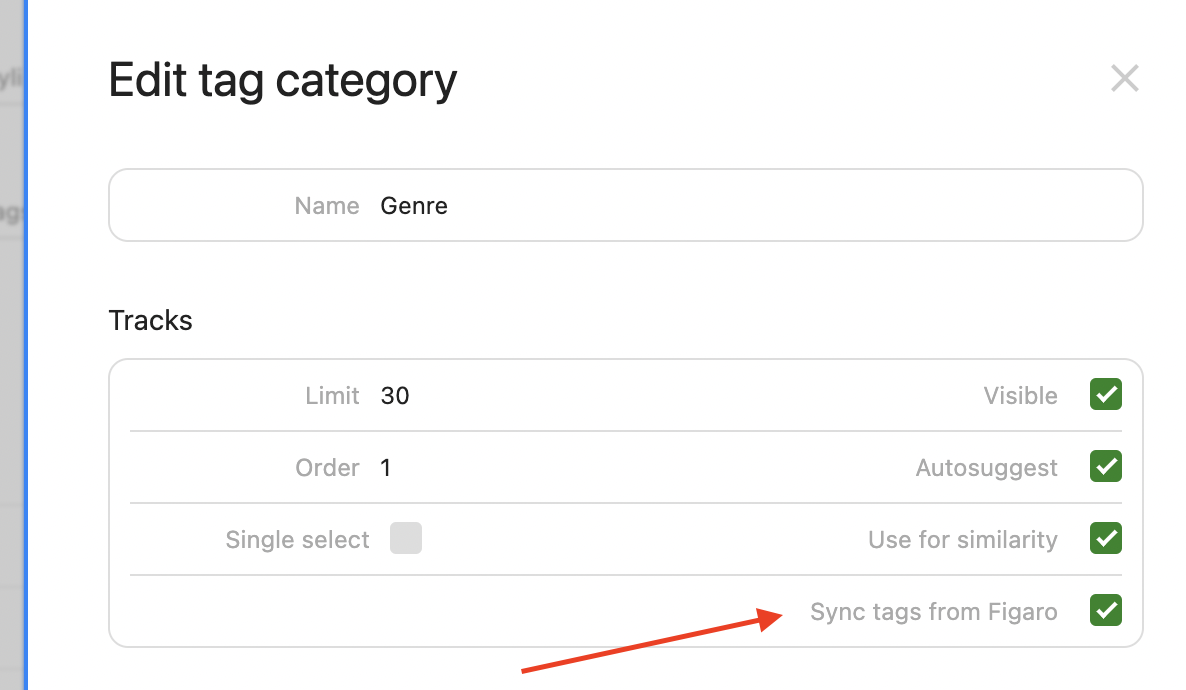
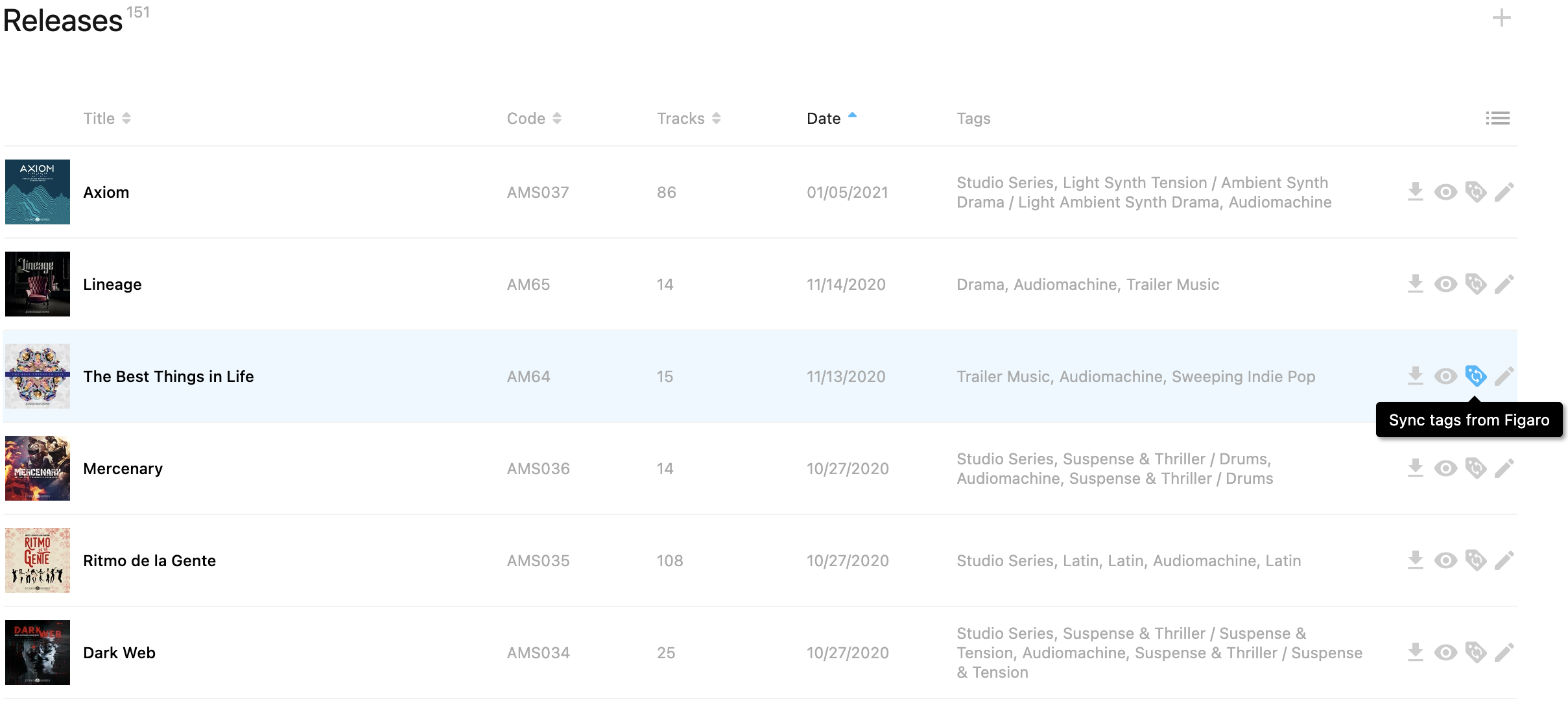
Sync tags from Figaro
Syncing of track tags can be done per track, or at the release level.
This action will first remove all tags in tag categories that you’ve chosen to sync, and will then replace them with the set of tags as you see them in the Figaro interface. Any tags in categories that are not set to sync will remain unchanged.

Once you are happy with the tags on a particular track in Figaro, navigate to your Cadenzabox tracks page, then trigger a sync using the Sync tags from Figaro button. When syncing at the track level, you can choose to sync solely tags on the main version, or also to sync tags for all nested track versions.
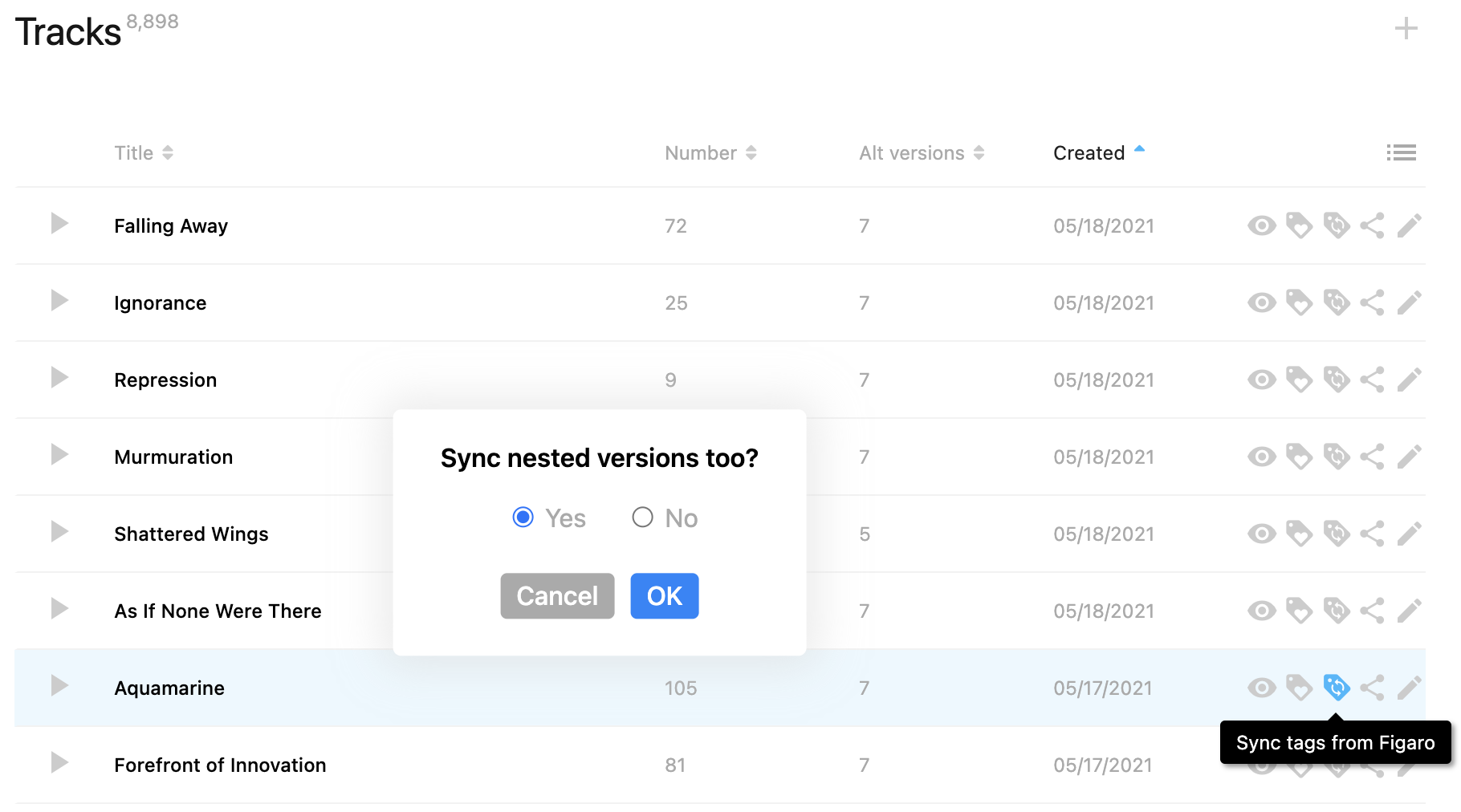
When syncing at the release level, all tracks on an album, and all their alt versions, are synced from Figaro via a single admin action. Once you are happy with the tags on every track of a release in Figaro, navigate to your Cadenzabox releases page, and trigger a sync using the Sync tags from Figaro button.
Other providers
The same Open in… and Sync tags from… buttons appear for AIMS and Cyanite if your library uses one of those instead of Figaro, and labels have a sync action too. The buttons only appear once Cadenzabox has enabled the integration for your library.