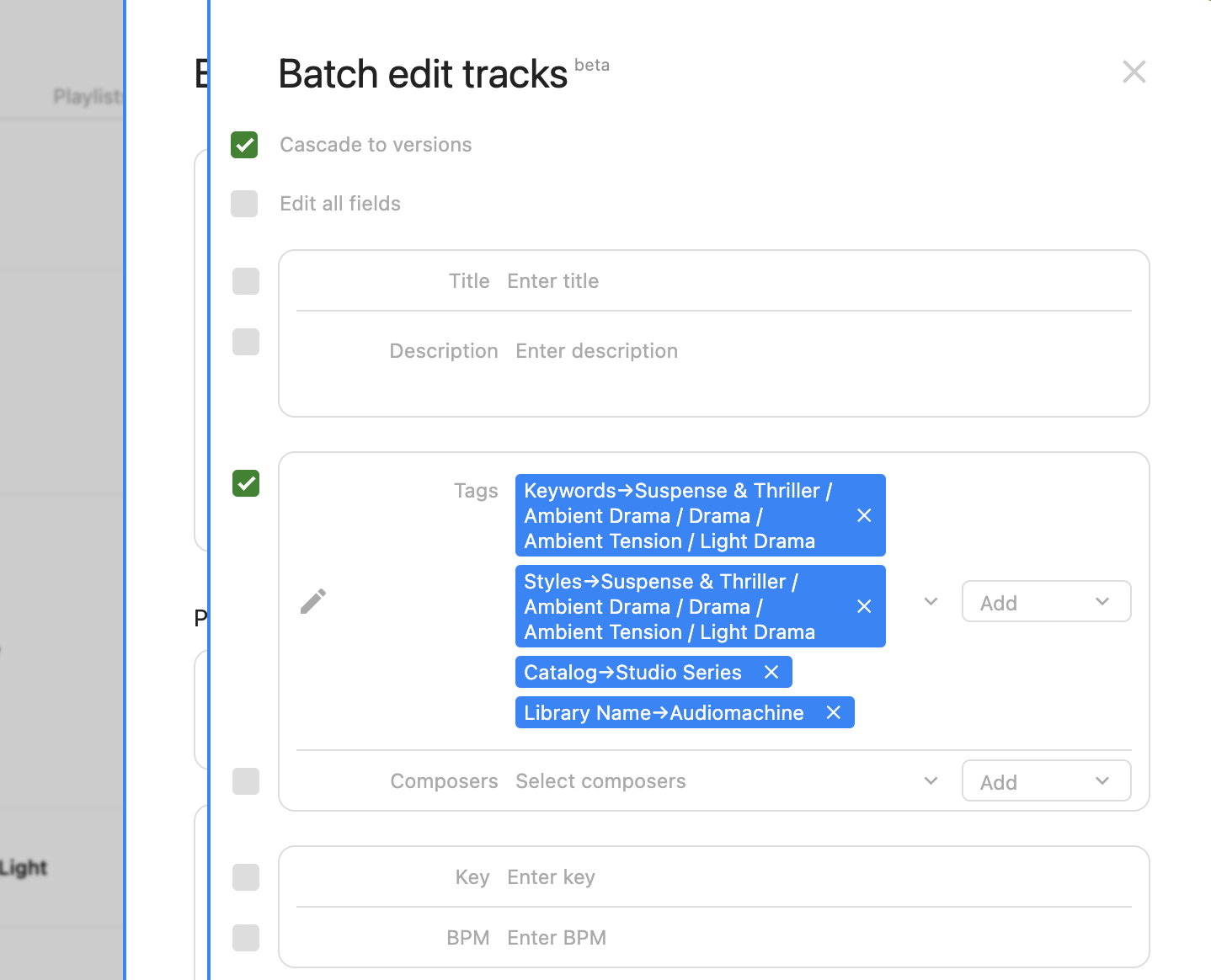
Selecting multiple tracks
- Navigate to Catalog > Tracks
- Use the checkboxes to select multiple tracks
- To select a few in a row, select the first track, hold
shiftand then select the last track you want to edit - Select or deselect all using the checkbox at the top
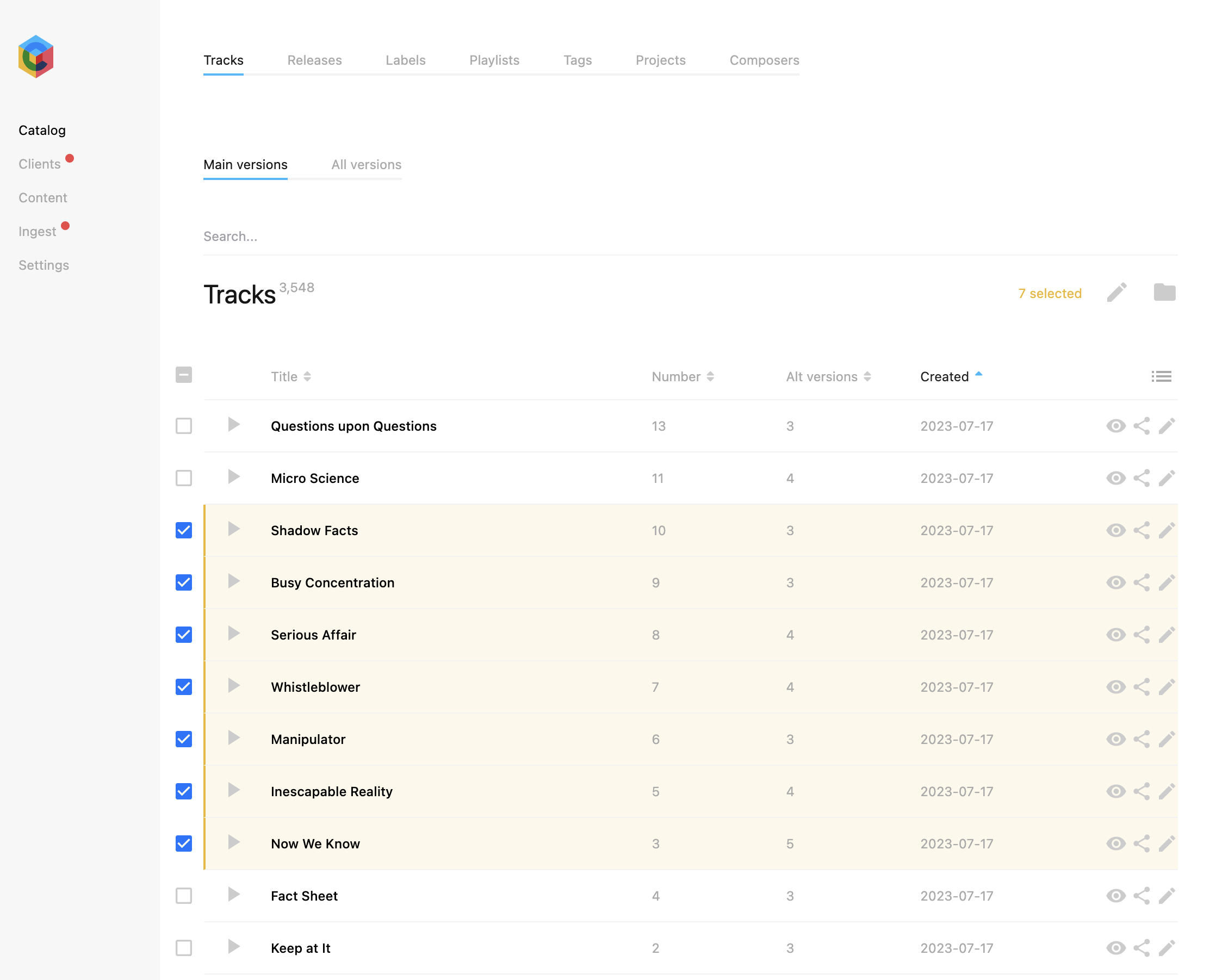
Open the batch edit modal
As you select multiple tracks the edit icon will appear at the top right.
- Once you have selected all the tracks you need to edit, click the edit icon to enter the batch edit modal
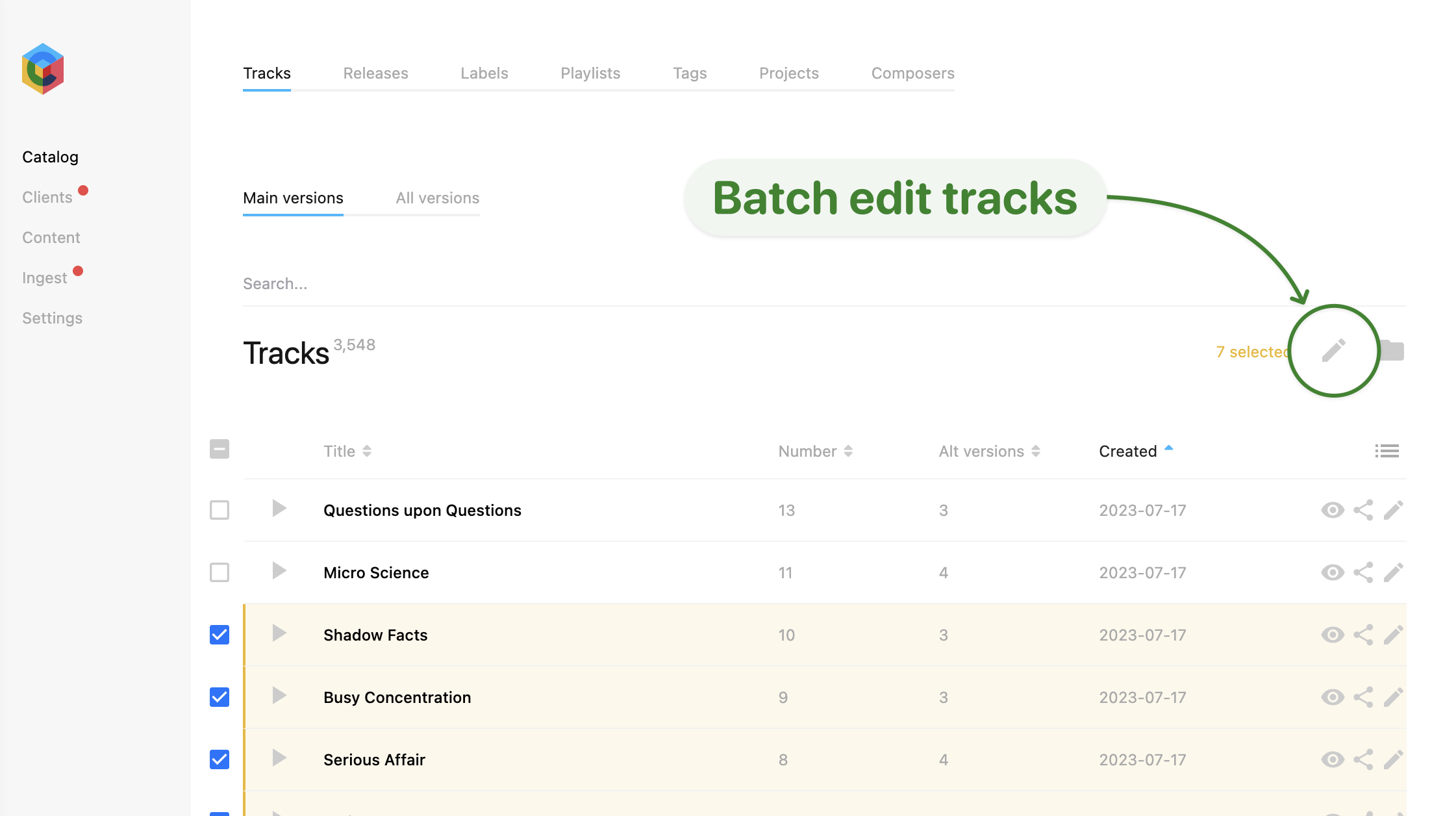
Edit fields + save changes
- Type within each text input box to overwrite the current information
- To apply changes for a particular field, click the checkbox to its left
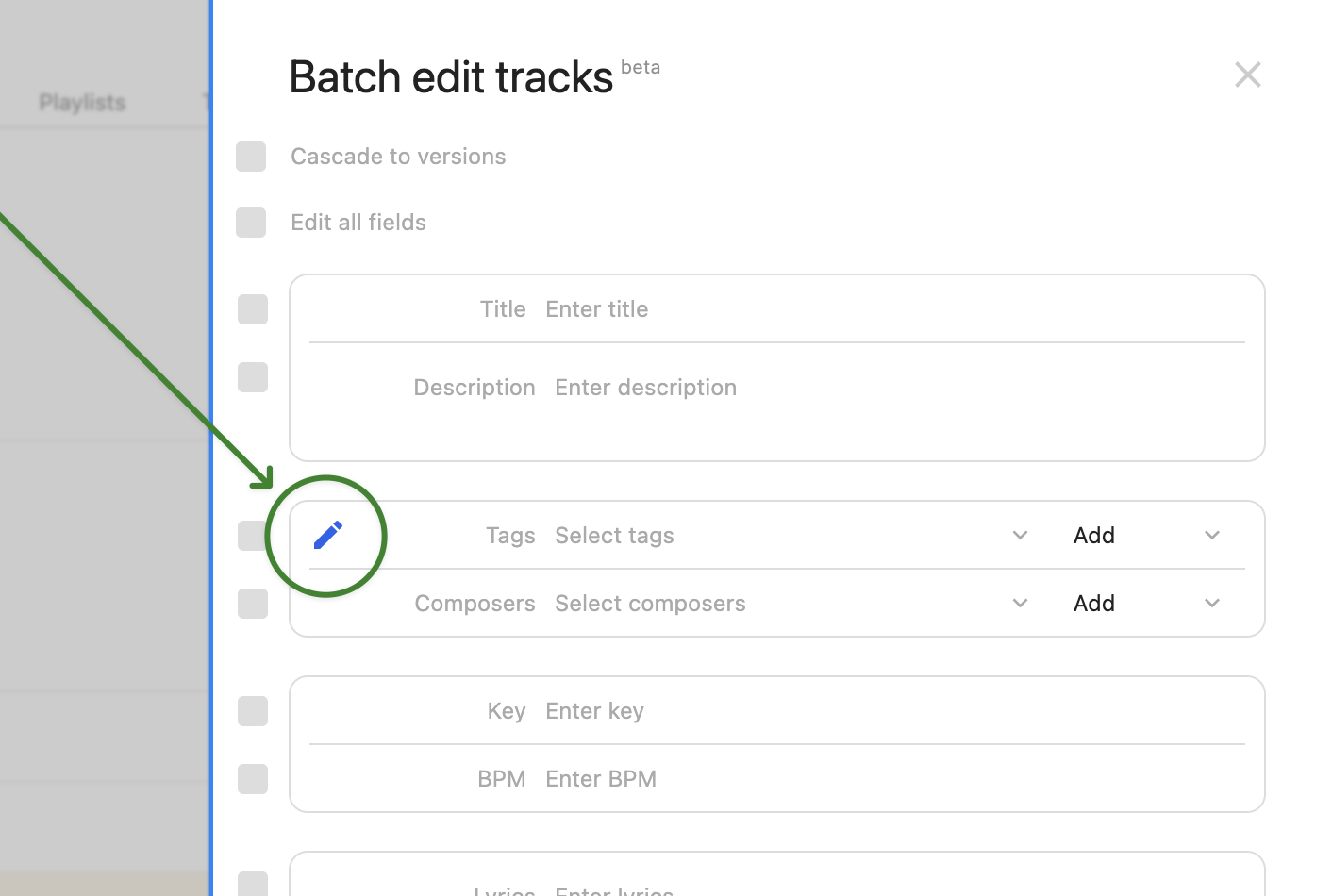
- To apply changes to all fields, click the Edit all fields checkbox at the top
- Save the changes by clicking the green tick icon at the foot of the modal
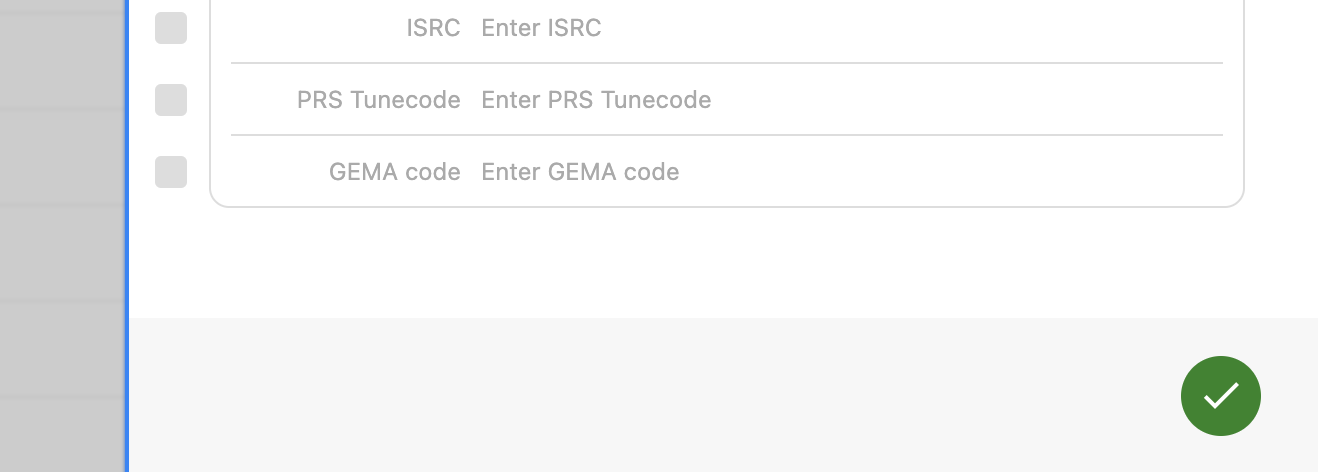
The batch edit modal covers Published, Title, Version title, Description, Teaser, Key, BPM, Lyrics, Search metadata, Code, ISWC, ISRC, PRS Tunecode, GEMA code, Tags and Composers.
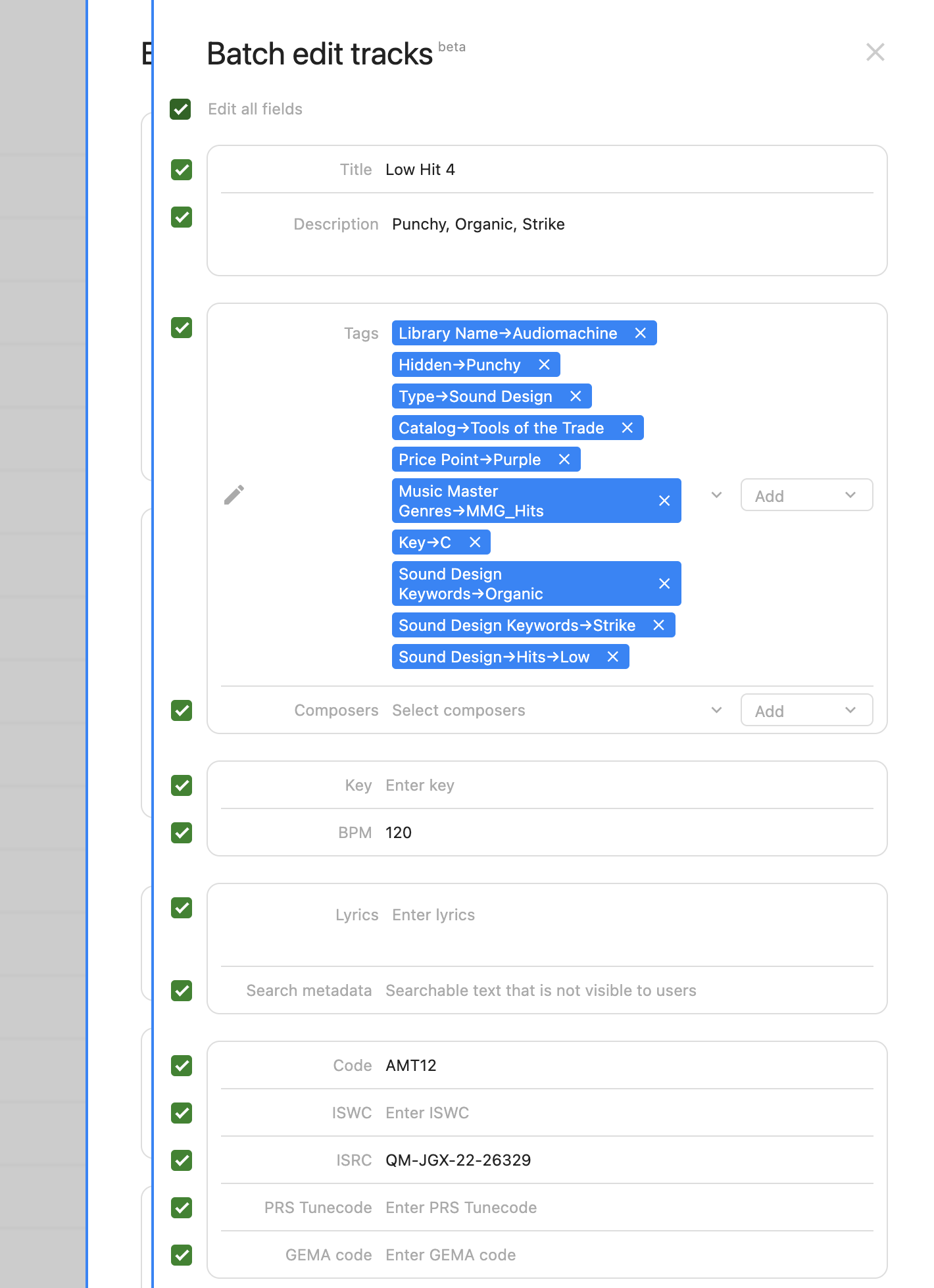
Tags + composers: to add or overwrite?
- Tags and composers work differently from other fields
- By default, tags and composers are only added to the batch of tracks, meaning existing tags and composers will be retained
- To completely overwrite the tags or composers, select Overwrite from the dropdown on the right
- Add is the default. To apply this field to the batch, ensure the checkbox is selected to the left of the field
- Save the changes by clicking the green tick icon at the foot of the modal
Prefer to choose tags from your tag cloud?
Click the edit pencil icon to the left of the tags field to bring up your tag cloud and select which tags to apply.
Cascade to all versions
- To apply your edits to all selected tracks’ nested alt versions, select the Cascade to versions checkbox at the very top.