
Tag widgets
Tag images
Also known as ‘quick search’, ‘batch search’ or ‘one click search’, use this widget to have a predetermined group of tag searches available via the click of an image
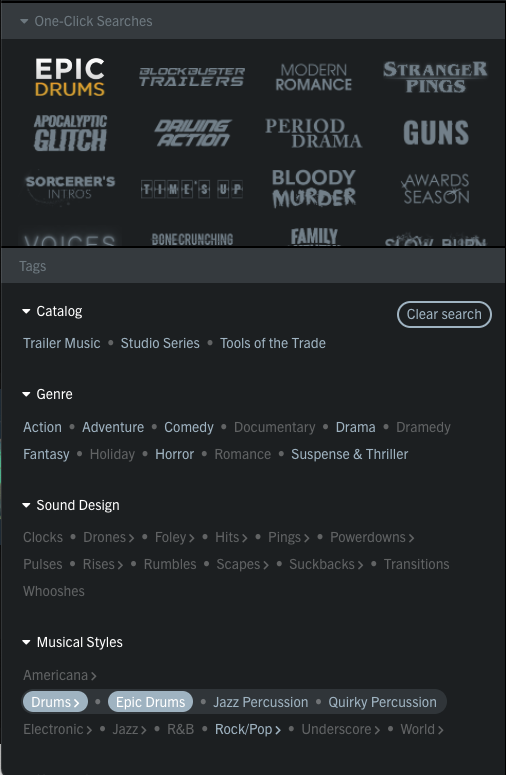
To enable tag images on your site:
- Log into the admin
- Navigate to Content > Widgets
- Select the Tag Widgets tab
- Click on the + icon at the bottom and select Tab images

- Tab name will be the displayed title
- Expanded by default controls whether the widget section starts open or closed on the page
- To add an item, click on the smaller plus icon on the tab images widget
- Under Image, upload the image you would like to use for the multi tag search (we recommend using a .png so it can be transparent for hover purposes)
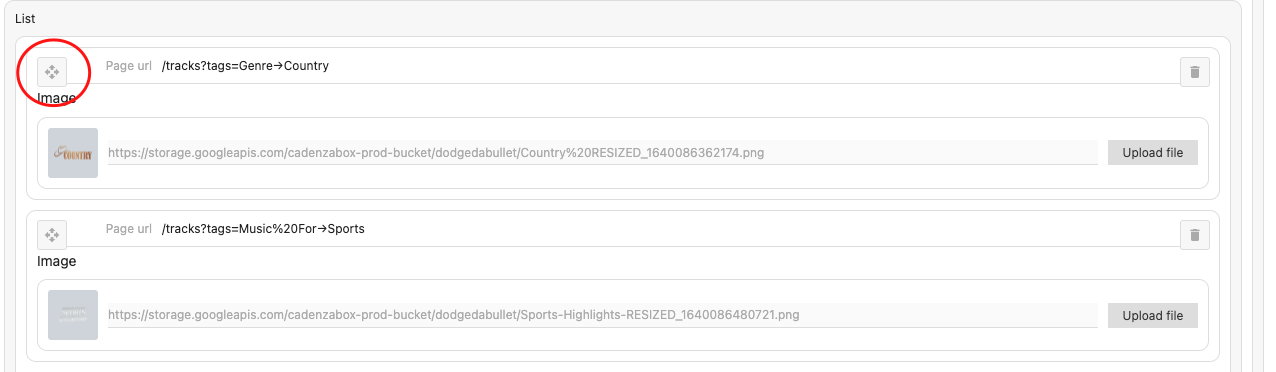
- To add the tag url, select the tags you’d like to multiselect on the tracks page of your site and copy the url of that tag search from ‘/tracks’ onwards…

- Within the item, paste the copied URL into Page url

- Continue to add more items (images and URLs) and press save
Quick links
A simpler list of links without the tabbed layout: each item has a Name, a Page url and an optional Image. Add it from the same + menu and fill in the items as above.
Tag order
The order can be changed by dragging each item above/below the items you want it to appear. Selecting and holding the directional icon on each item, then begin to drag it to the order you want.
The images linking to a multi search filter will now appear on your /tracks page above your tags. If you’d like any customisation to this layout/style, get in touch
Track widgets
Track widgets are before search widgets you can add to highlight featured content to your users.
To add track widgets to your site:
- Log into the admin
- Navigate to Content > Widgets
- Select the Track Widgets tab
- Click on the + icon at the bottom to bring up the component list:
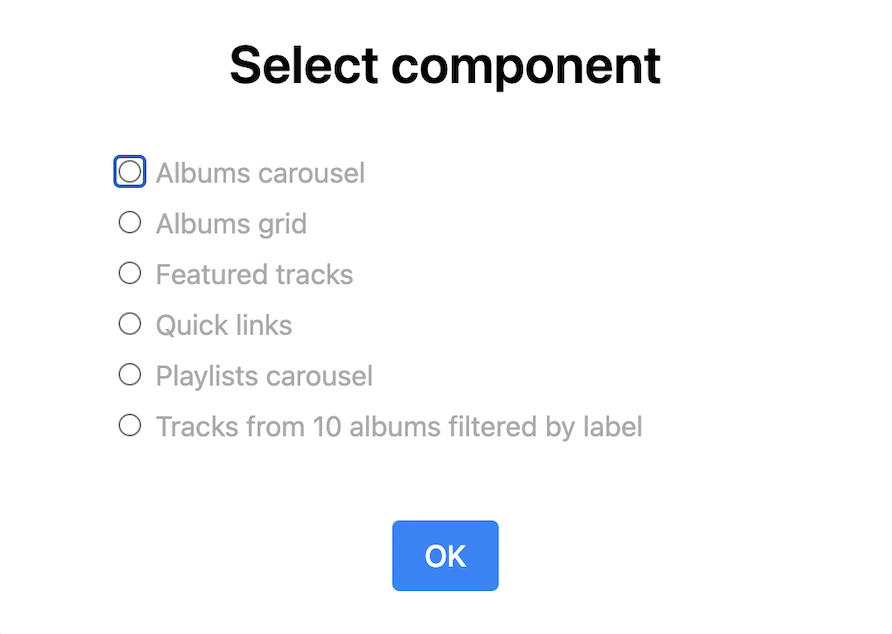
- Choose from the list then click OK
- Tick Show on no results state if the widgets should also appear when a search returns nothing
Albums carousel
This will display a slideshow of releases.
- Type a name to title the widget, for example, ‘Featured Albums’
- If the next two fields are left blank then the most recent releases will be automatically displayed. To choose specific releases to include:
- Type to search for specific releases
- Filter by tag by searching and choosing tags
- Set the limit for the number of releases displayed by typing in the limit box
- Click the ‘save’ button at the bottom
Albums grid
This will display releases in a grid format.
- Type a name to title the widget, for example, ‘Featured Albums’
- If the next two fields are left blank then the most recent releases will be automatically displayed. To choose specific releases to include:
- Type to search for specific releases
- Filter by tag by searching and choosing tags
- Set the limit for the number of releases displayed by typing in the limit box
- Click the Save button at the bottom
Featured tracks
This will display tracks in a grid format.
- Type a name to title the widget, for example, ‘Featured Tracks’
- Type to search and select tracks
- Set the limit for the number of tracks displayed by typing in the limit box
- Click the Save button at the bottom
Quick links
A list of links (each with a Name, Page url and optional Image) shown among your track widgets.
Recommended tracks based on
Recommends tracks automatically.
- Choose what to base the recommendations on: Tags, Downloads, Plays or Favourites
- Tick Mains only to exclude alt versions, and One track per release to spread the results across albums
- Set the limit and save
Trending albums or tracks
Shows what is popular right now.
- Choose the Period to measure (from the last hour to all time)
- Choose Group by none, main version or release
- Set the limit and save
Playlists carousel
This will display a slideshow of playlists.
- Type a name to title the widget, for example, ‘Featured Playlists’
- If the next two fields are left blank then the most recent playlists will be automatically displayed. To choose specific playlists to include:
- Type to search for specific playlists in the Playlists field
- Or filter by tag by searching and choosing tags
- Set the limit for the number of playlists displayed by typing in the limit box
- Click the Save button at the bottom
Tracks from 10 albums filtered by label
Shows tracks from the latest albums on the labels you choose.
- Select one or more Labels
- Set the limit and save
Info
Filtering a widget by specific tags disables its release or playlist picker, and Populate remaining spaces fills any gaps with recent items.