
What are pitches?
Pitches allow you to put together collections of tracks to create a pitch for a job.
They are an augmented, sales focused, high powered version of Projects.
In addition to what projects can do, pitches also:
- have fine grained access settings
- allow hero images to better present your pitch tracks
- have stats to track how your pitches are going
Create a pitch and add tracks
- To add a track to a pitch (new or existing), click the folder icon next to the track
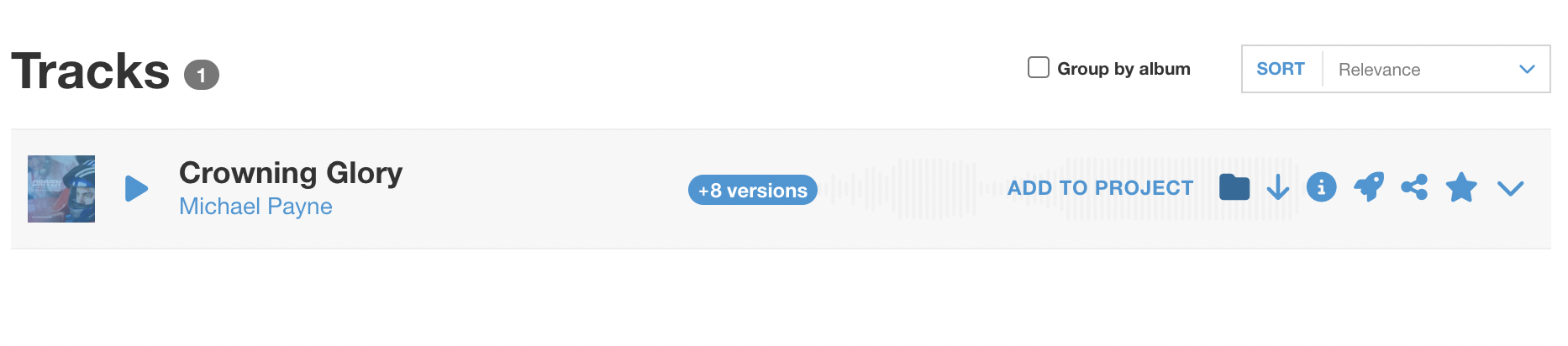
- Select the Add to pitch heading
- Choose from a list of your existing pitches or add a title to create a new pitch
- Fill in the description and company name
- Choose which users to have access to this pitch
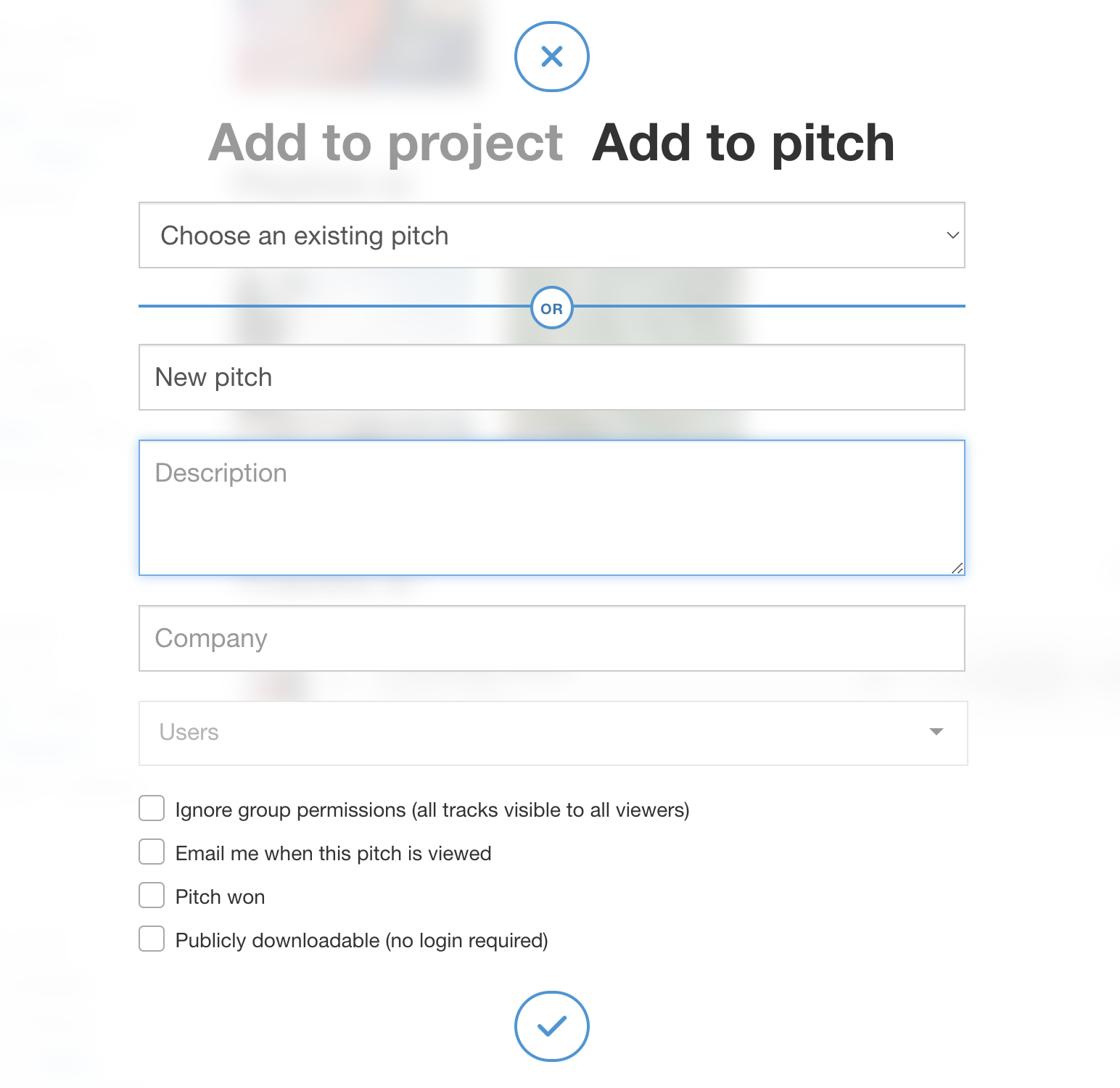
- Tick Ignore group permissions to allow users to see all the content included in the pitch regardless of the group permissions/restrictions they have.
- Tick Email me when this pitch is viewed to get an automatic email notification when it’s viewed
- Tick Pitch won to mark the status of this pitch as won
Sharing a pitch
- To share a pitch, click Share at the top next to the Download button
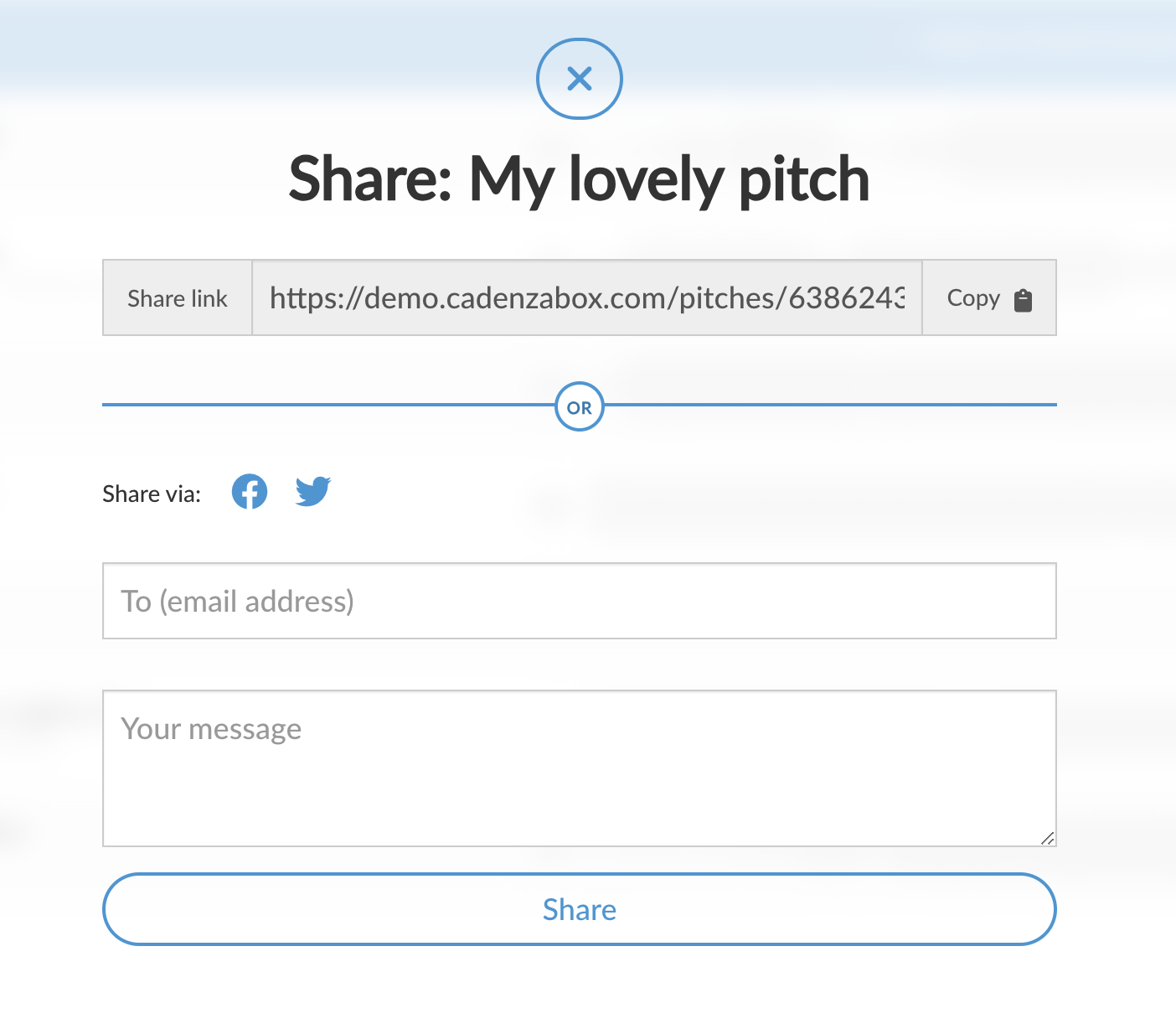
You can create a copyable link to send via any medium you choose, or share via email or social media.
- Tick Publicly downloadable if you’d like the person you’re sending the pitch to be able to download it without having to create an account. Retain security by adding an expiry date for this setting so it will stop being publicly downloadable after that date.
Add multiple tracks to an existing pitch
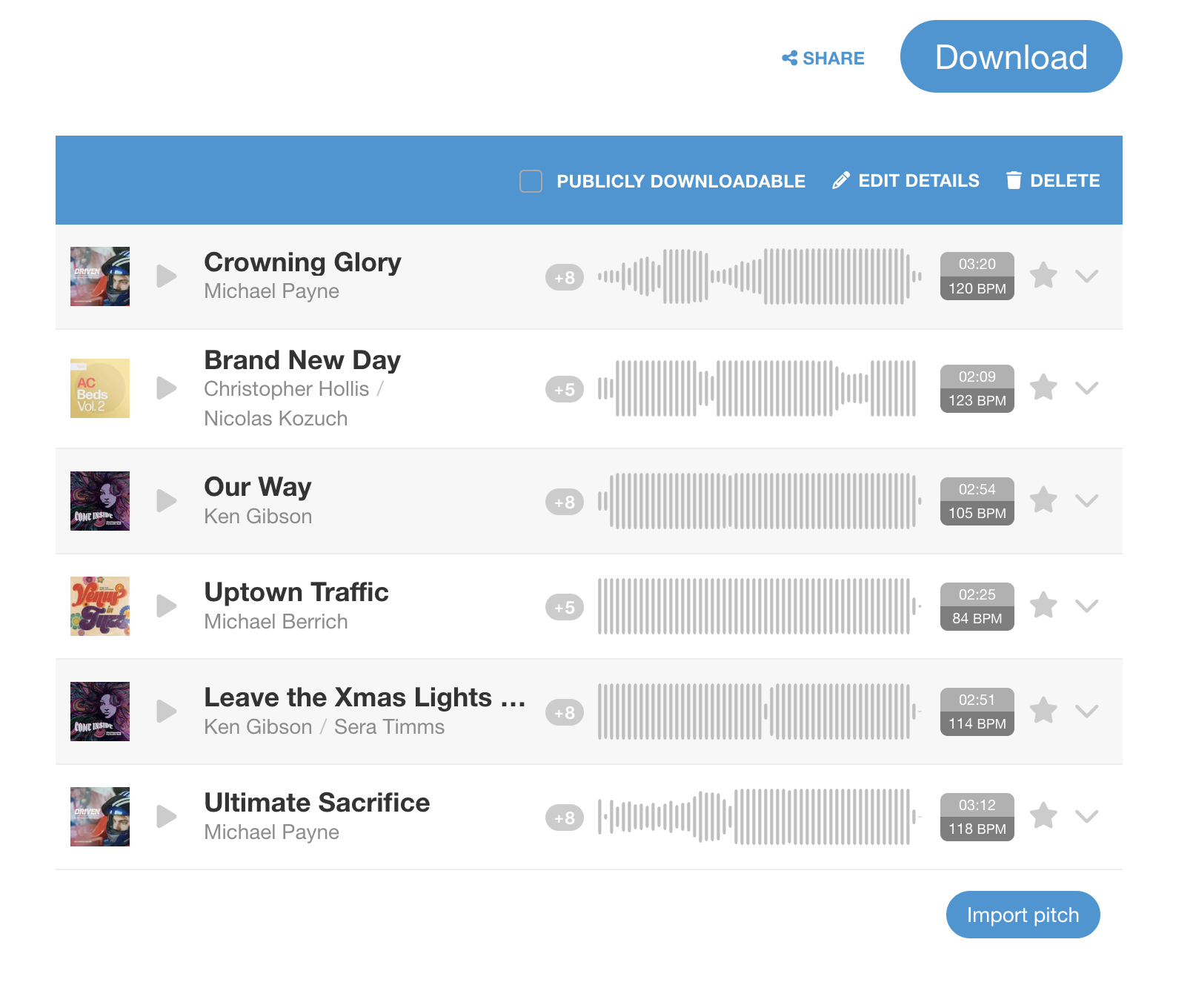
- To pull an entire collection of tracks into an existing pitch, click the Import pitch button at the bottom right and choose from the list of pitches to import all the tracks from a previously created pitch.
Edit pitch details or change its status
- Click Edit details on the top bar to edit the pitch details. For example, if it contains commercially sensitive information you can go in here and change it to visible to named users only
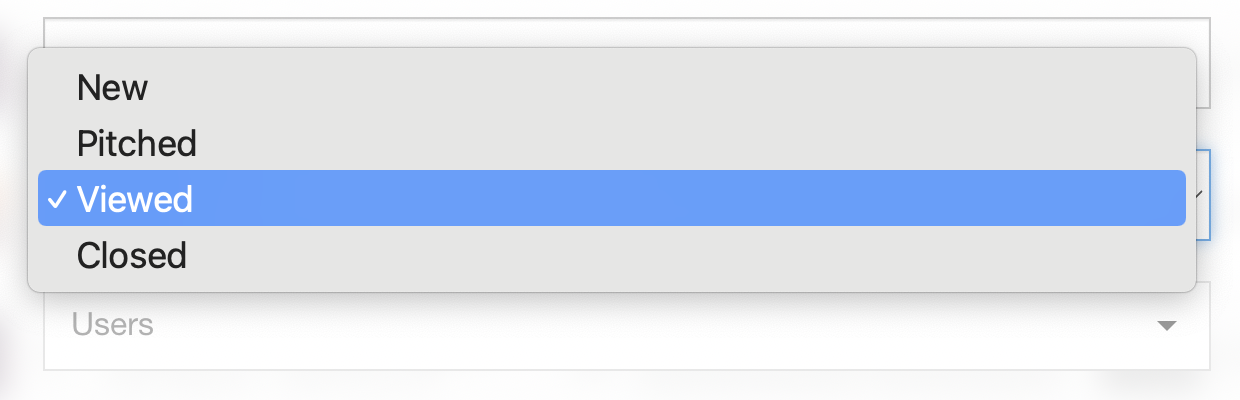
- Once a pitch has been created there will be the option to change its status. Select the appropriate status from the dropdown list:
Actions log (stats)
Pitches will automatically display details of any actions taken on a pitch. Scroll to the information below the tracks to view the ongoing log, which includes:
- when the pitch was created
- status changes
- who has viewed / shared the pitch
You can also see the contact information for users who have interacted with the pitch and timestamps.
Manage pitches in the admin
Everything above happens on your site. Pitches also appear under Catalog > Pitches in the admin, where you can edit the Title, Description, Company, Owner, Status, Expires date, Tracks, Users with access, Sleeve image, Hero image and Chapters, copy the pitch URL, and set the same Ignore group permissions, Email me when this pitch is viewed, Publicly downloadable and Pitch won options.