
Create a playlist
- Log into the admin
- Navigate to Catalog > Playlists
- Click the + icon on the right hand side of the page
- In the Create playlist panel fill in the details (Title is required). You can also set a Release date, a Packshot, Tags, Chapters and add Tracks directly here
- Playlist type offers two automated options: an AI prompt playlist builds itself from a text prompt and can refresh on a schedule, and a Seeded playlist fills itself with tracks similar to the ones you seed it with
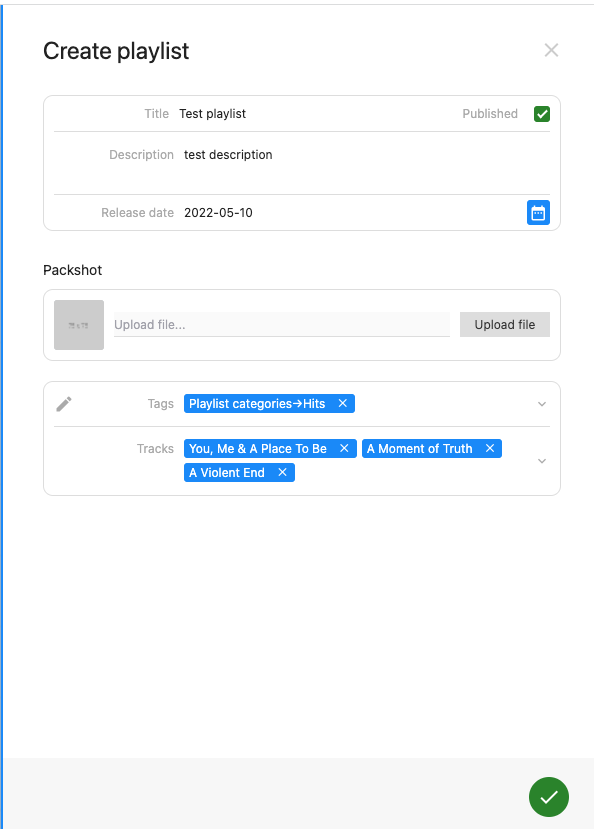
- Press save
Add tracks to playlist
- Log into the admin
- Navigate to Catalog > Tracks
- Search for the track(s) in question
- Select the track(s) you want by selecting the checkbox to the left of the track play icon (multiple tracks can be selected)
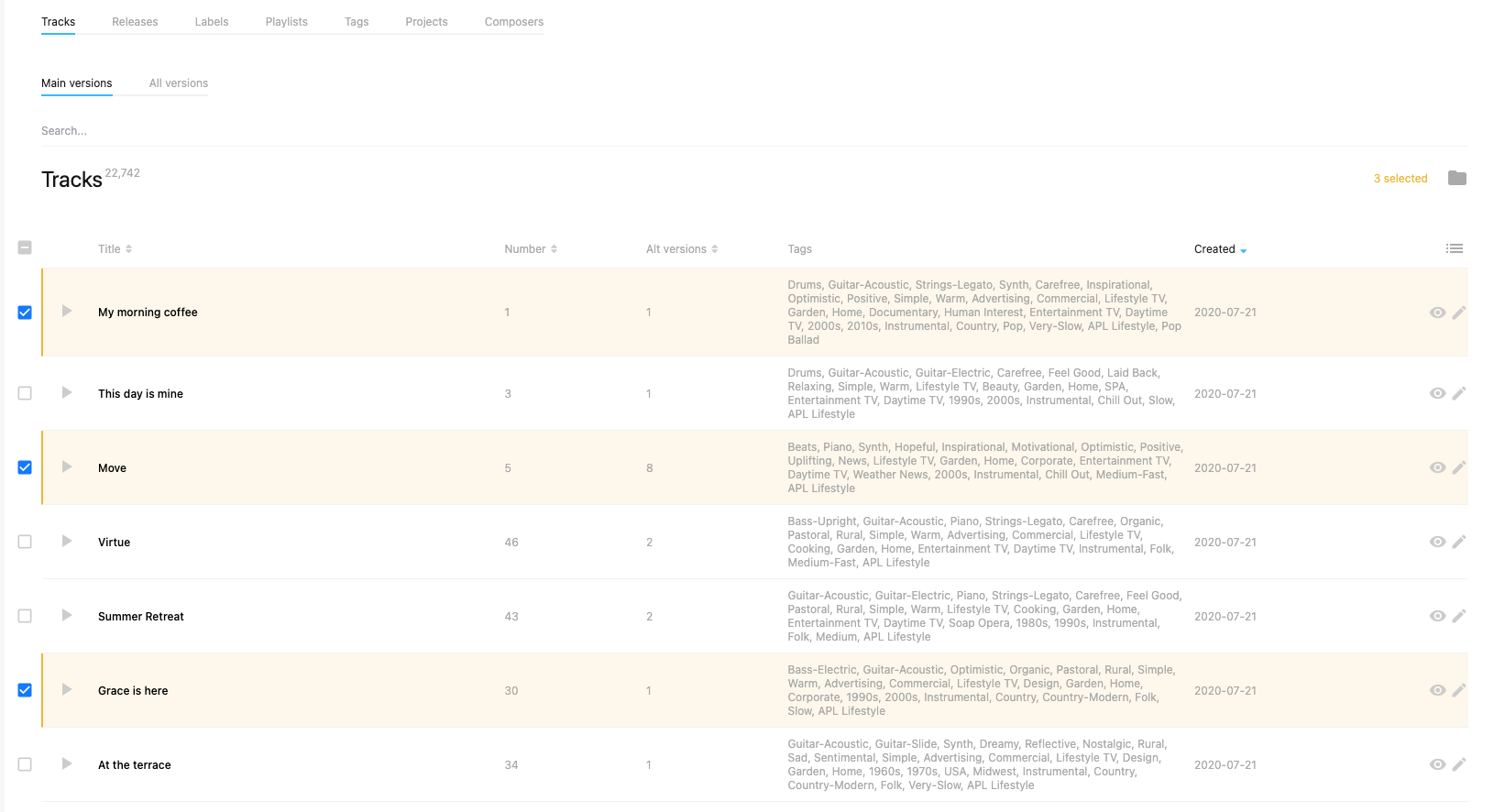
- On the right hand side of the page, select the folder icon
- In the panel that opens, choose the Playlists tab
- Find the playlist you’d like to add the tracks to and click the green plus icon
Tip
If you want to add tracks from a particular release, navigate to Catalog > Releases, search for the release, click the eye icon to see its track listing and continue the process above.
Add versions to a playlist
- Log into the admin
- Navigate to Catalog > Tracks
- Search for the track in question, click on the eye icon to find its versions
- To the left hand side of the track, there’s a checkbox; select that
- In the top right of the page, a folder icon will appear. Click it and choose Playlists
- Find the playlist in question and hover over it; you’ll see a green plus icon. Click that
- The version has now been added to the playlist
Hide or show playlist
When creating a playlist (or via ingesting), you may want to hide the item from the front end of the site, possibly while still in creation or adding metadata.
- Log into the admin
- Navigate to Catalog > Playlists
- Search for the playlist you want to edit and click on the pencil icon
- The Published checkbox is in the top right of the edit panel, check or uncheck for visible status on the front end of the site
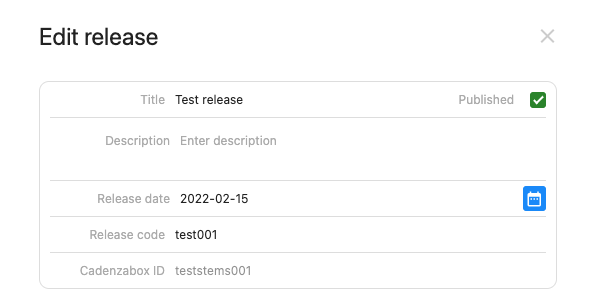
- Save the item