Before you start
Before you start the ingestion process, make sure you have read through Prepare and deliver your audio and Prepare your metadata to make sure your audio has been uploaded to the right place before ingestion to the system and that your CSV metadata is formatted correctly.
Ingesting a CSV file
- Log in to the admin panel
- Navigate to Ingest > Metadata
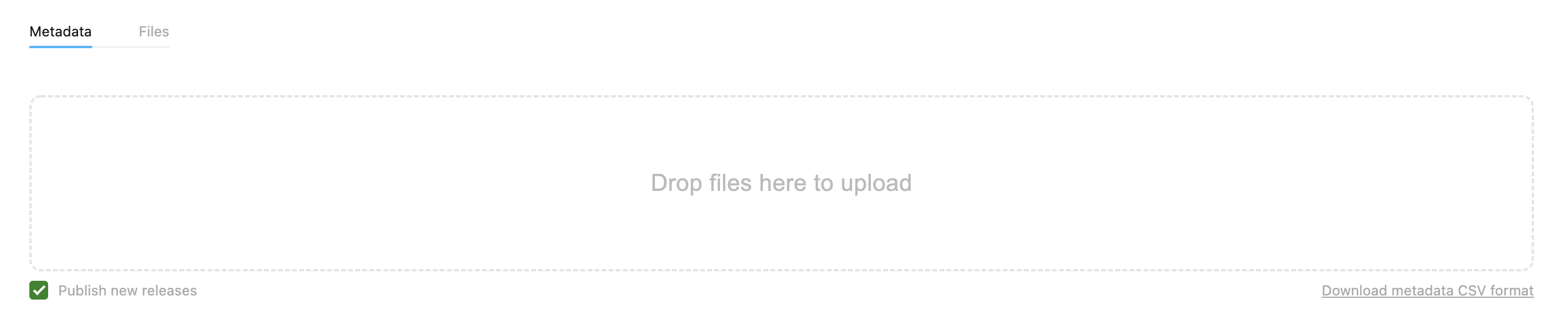
- If you don’t want any new albums to be published instantly, untick the Publish new releases checkbox before dragging the CSV in. Find out how to publish items later here.
- Tick Reimport audio for existing tracks only if the audio has changed for tracks that already exist; otherwise existing audio is left alone.
- Drag your CSV into the drop area. You can also download the Cadenzabox CSV template from this page (see Prepare your metadata).
Watching the import
While a CSV is being processed it appears in the Incoming table at the top of the page with its progress. If an import gets stuck, the Mark as failed action clears it so you can upload again.
Track states
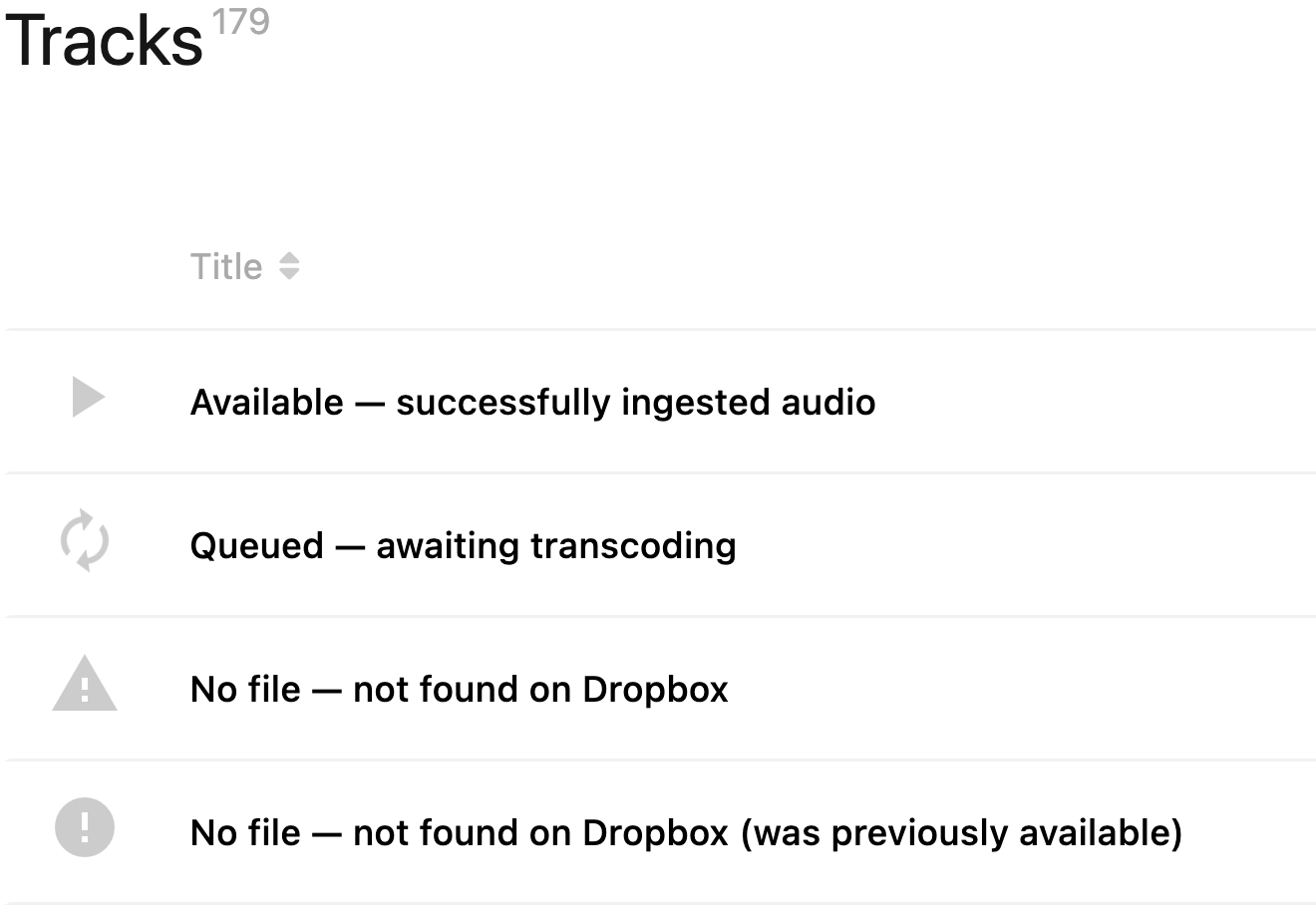
Under Ingest > Files each track’s audio shows one of these states:
- Available — successfully ingested audio 🎉
- Queued — awaiting audio transcoding
- Processing — being transcoded right now
- No file (triangle) — the filename in the CSV was not found in your delivery folder
- No file (circle) — not found now, but the track still references audio transcoded previously (hover for “Referencing old audio file”)
- Failed or Invalid audio — the file was found but could not be transcoded; check the format requirements
Use Rescan on that page after adding missing files to your delivery folder.