Adding a release via ingestion
New releases (albums) can be added via a CSV ingestion, but a release can also be made manually.
Creating a release manually
- Log into the admin
- Navigate to Catalog > Releases
- Click on the plus (+) icon on the right hand side of the page to create a new release
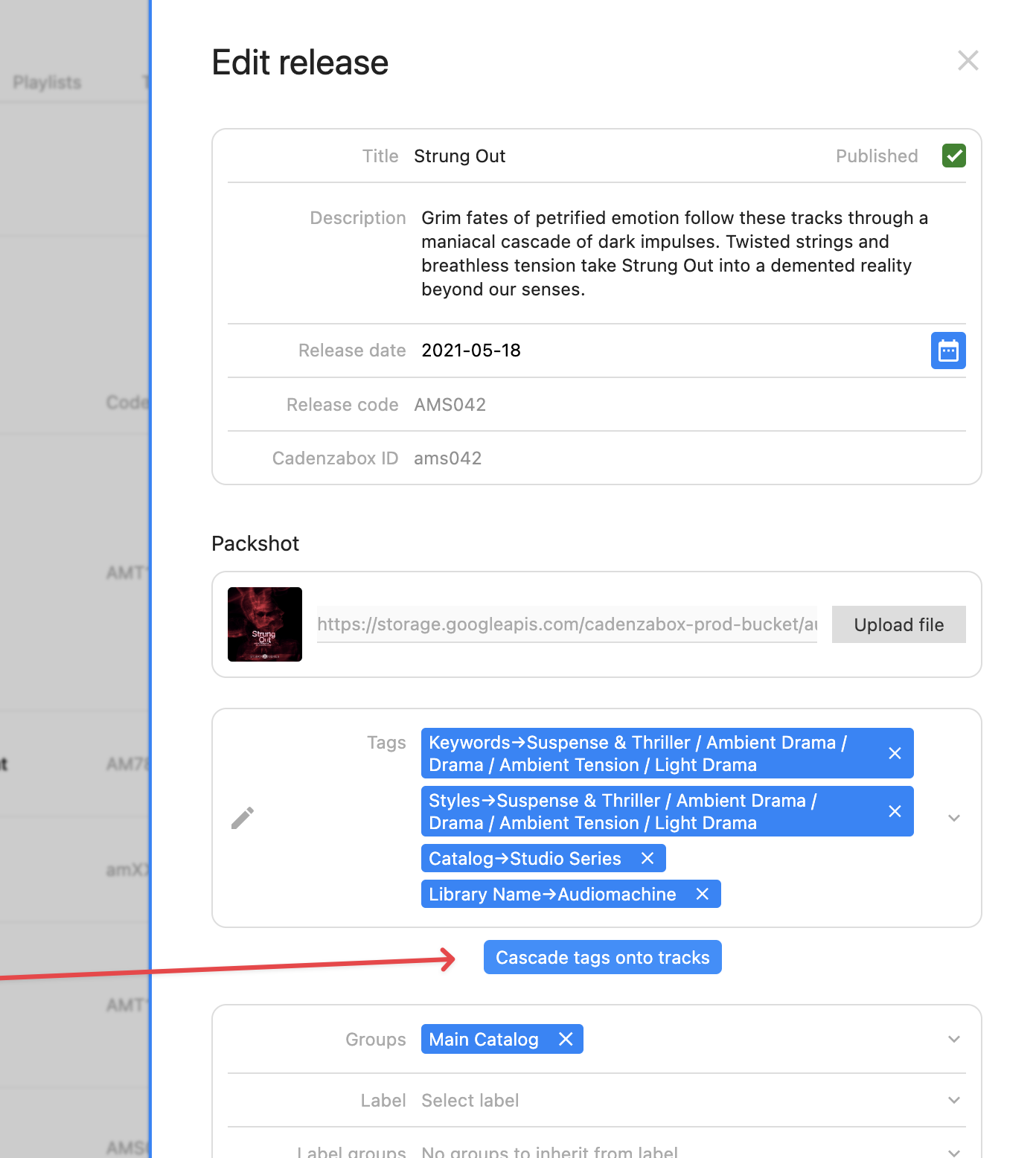
- Fill in the fields for the album: Title, Description, Release date, Album artist, Release code, Packshot, Tags, Groups, Label and optionally Chapters. The Cadenzabox ID is generated for you
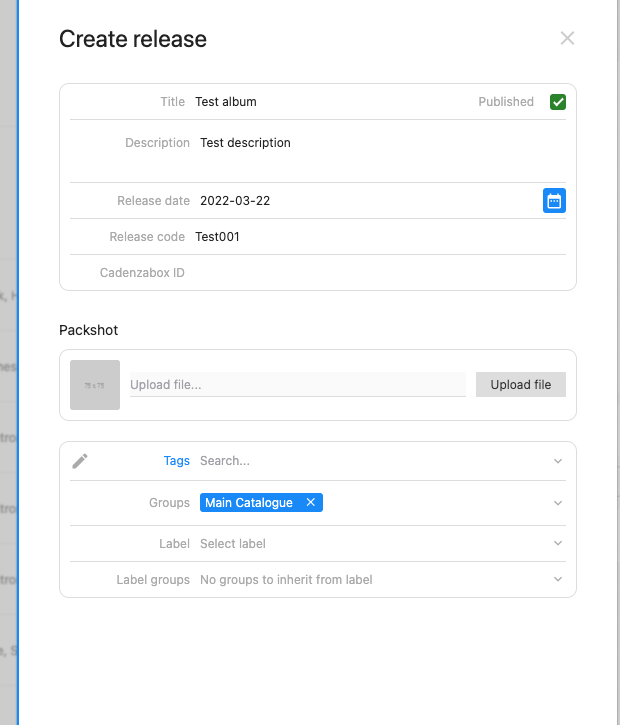
- If you would like to not have the release shown on the front end yet, leave the Published checkbox unchecked and it will remain hidden from users (to work on in the admin)
- The Main Catalogue group is required for all users to see the release (a default group setting), but can be amended if you want to have custom user access to certain releases. Groups set on the release’s label are inherited and shown read only under Label groups
- Save the release
Add track to release
Once the release is saved and available to view in the ‘releases’ section of the admin, you can add tracks to a release via the track itself
- Log into the admin
- Navigate to Catalog > Tracks
- Search for the track name in question
- Click on the pencil edit icon
- Under Parent release add/edit the name of the album you would like to add the track to
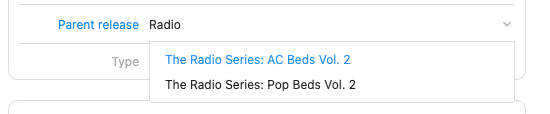
- Click save
The track will now appear on the requested album/release.
Hide or show release
When creating a release (or via ingesting), you may want to hide the item from the front end of the site, possibly while still in creation or adding metadata.
Releases can also be unpublished by default on ingestion.
- Log into the admin
- Navigate to Catalog > Releases
- Search for the release you want to edit and click on the pencil icon
- The Published checkbox is in the top right of the edit panel, check or uncheck for visible status on the front end of the site
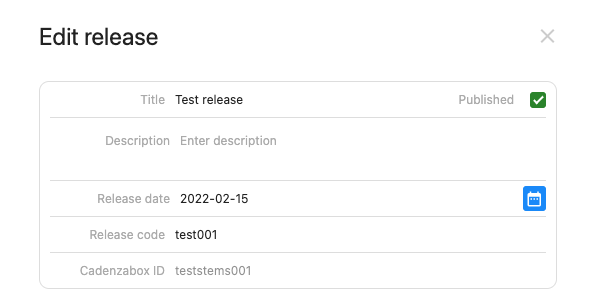
- Save the item
Cascade release tags onto tracks
- Click the Cascade tags onto tracks button to add some or all of a release’s tags onto all of its tracks
- See the Batch edit tracks help page for more information