
Methods
New tags (and categories) can be added via a CSV ingestion, but tags can also be created manually, in the same place where an existing tag is manually added to an item (track, release, playlist, etc.), or directly under Catalog > Tags with the + icon.
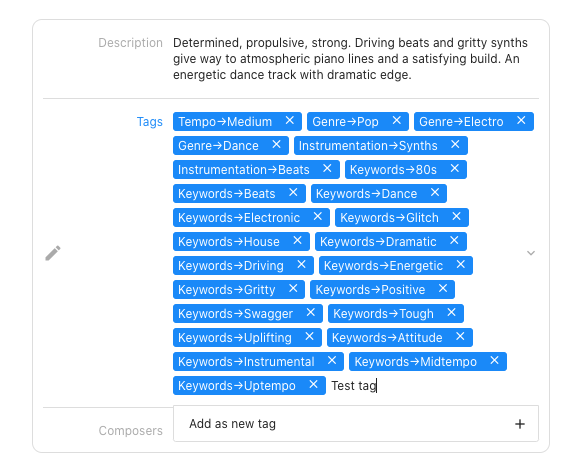
How to add a new tag
- Log into the admin
- Navigate to Catalog > Tracks (or Releases / Playlists, depending on the item you’d like to add the new tag to)
- Search for the item you’d like to add the new tag to
- Scroll to the tags section and type the name of the tag you would like to add
- If the tag doesn’t already exist, the autocomplete will show Add as new tag; select that option
- Choose the Category for the new tag and, optionally, a Parent (must be an existing tag in the same category)
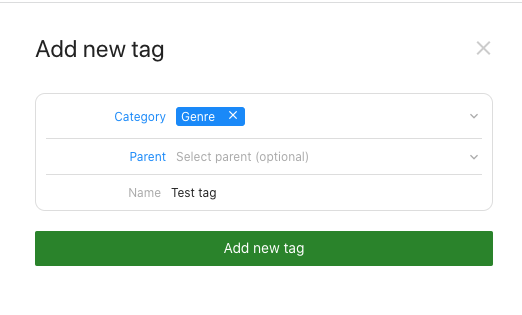
- Click Add new tag. The tag is created immediately
- Save the item
- You can now add the tag to other tracks in the same way you manually add tags to an item