
New tag
If the tag is brand new, it will need to be created by following these steps.
Adding an existing tag to a track, release or playlist
- Log into the admin
- Navigate to Catalog > Tracks (or Releases / Playlists, depending on the item you’d like to tag)
- Search for the item and click its pencil edit icon
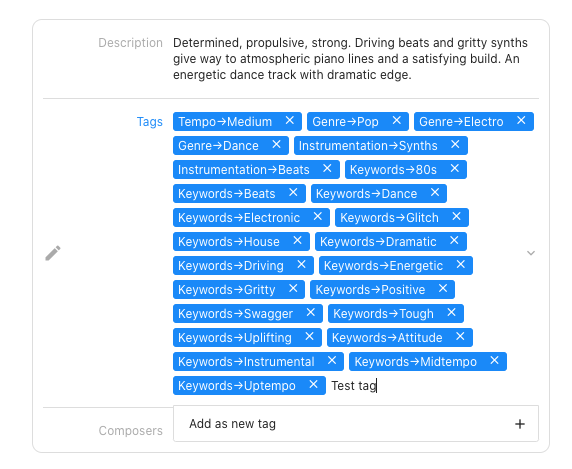
- Scroll to the Tags section and type the name of the tag you would like to add
- If the tag exists, it will appear in the autocomplete; select it
- Save the item
The tag has now been added manually.
Adding many tags at once
To apply the same tags to several tracks, select them in the list and use Batch edit tracks. To apply a release’s tags to all of its tracks, use Cascade tags onto tracks on the release; see Releases (albums).