
Bulk upload
In most cases, our bulk ingestion workflow is the fastest way to add tracks to your library.
Manual upload
Sometimes a small number of audio files need to be uploaded, in cases such as…
- Incorrect audio added from a previous ingestion
- Creating a release (album) manually rather than via a bulk ingestion
- Audio is missing from previous bulk ingestions
Tip
If many tracks are missing audio, a reingestion is usually quicker than uploading them one by one. See Ingest your metadata & audio.
How to upload audio to a track
- Log into the admin
- Navigate to Catalog > Tracks (or Catalog > Releases if you’re creating new tracks and want to view the whole release)
- Search for the track you want to upload audio to, and select the pencil edit icon
- If you’re creating a brand new track, fill in the required details of the track (title, parent release etc.) and select Click here to upload audio
- Because a release is a required track field, you must create the release first ![[Screenshot_2022-03-01_at_14.02.12.png|If the track is brand new, select Click here to upload audio, which will save the track and allow you to upload audio]]
- If the track already exists (or you have selected Click here to upload audio) and the track had no existing audio, click on the cloud icon to select which audio from your local file system you would like to upload.
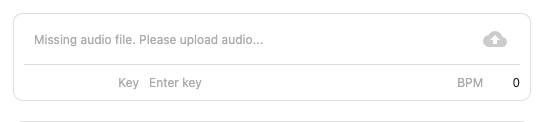
- The audio will begin to upload and will show you a progress percentage, you will see an updated message in the upload area
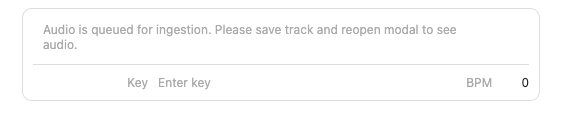
- Save the track, the audio has now been added/updated (not saving the track will result in loss of the uploaded audio and the process will need to be started again)
Replacing a track’s audio
Manually uploading over existing audio is possible in the same process as above. However, please be aware that once the audio is replaced, the original cannot be recovered.