
What are notifications?
Notifications are emails and Slack messages sent out to a custom email address or Slack channel based on a specific user action.
These can be used to alert you and your team when a response or action is needed. This could be a timely nudge to allow a user to have their account verified, or could be set up to keep you abreast of other user actions, like downloads.
Notifications on this page relate to messages you and your team receive. Emails that the system sends out to your users have their “from address” configured as part of the setup process and are configured in a different way with customisable and brandable email templates.
Email notifications
- Log into admin
- Navigate to Settings > Notifications
- Add email address to each notification you want to use
- Select how often to receive each notification from the dropdown: Off, Each (immediately, as each event happens), Hourly, Daily, Weekdays, Weekly or Monthly. Some notifications only offer Off and Each
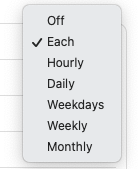
- All daily, weekdays, and weekly emails are sent out at 9am UTC
- Monthly emails are sent on the first of each month
- Multiple emails can be added to each notification, comma separated
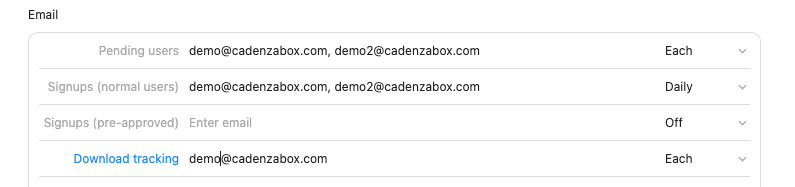
- Press save
Slack notifications
To set up Slack notifications you first need to enable Incoming Webhooks in Slack.
- Log into your Slack workspace admin in your browser
- Visit the following address: https://slack.com/apps/A0F7XDUAZ-incoming-webhooks
- Press “Add to Slack”
- Choose which default channel you would like the notifications sent to
- Press “Add incoming webhooks integration”
- Slack should give you a URL that looks something like this:
https://hooks.slack.com/services/AY8CJ7/M3JD54/fx4a7xF9p7JnILs5GX
- Add this Webhook URL at the bottom of your Slack notification settings
- Press save
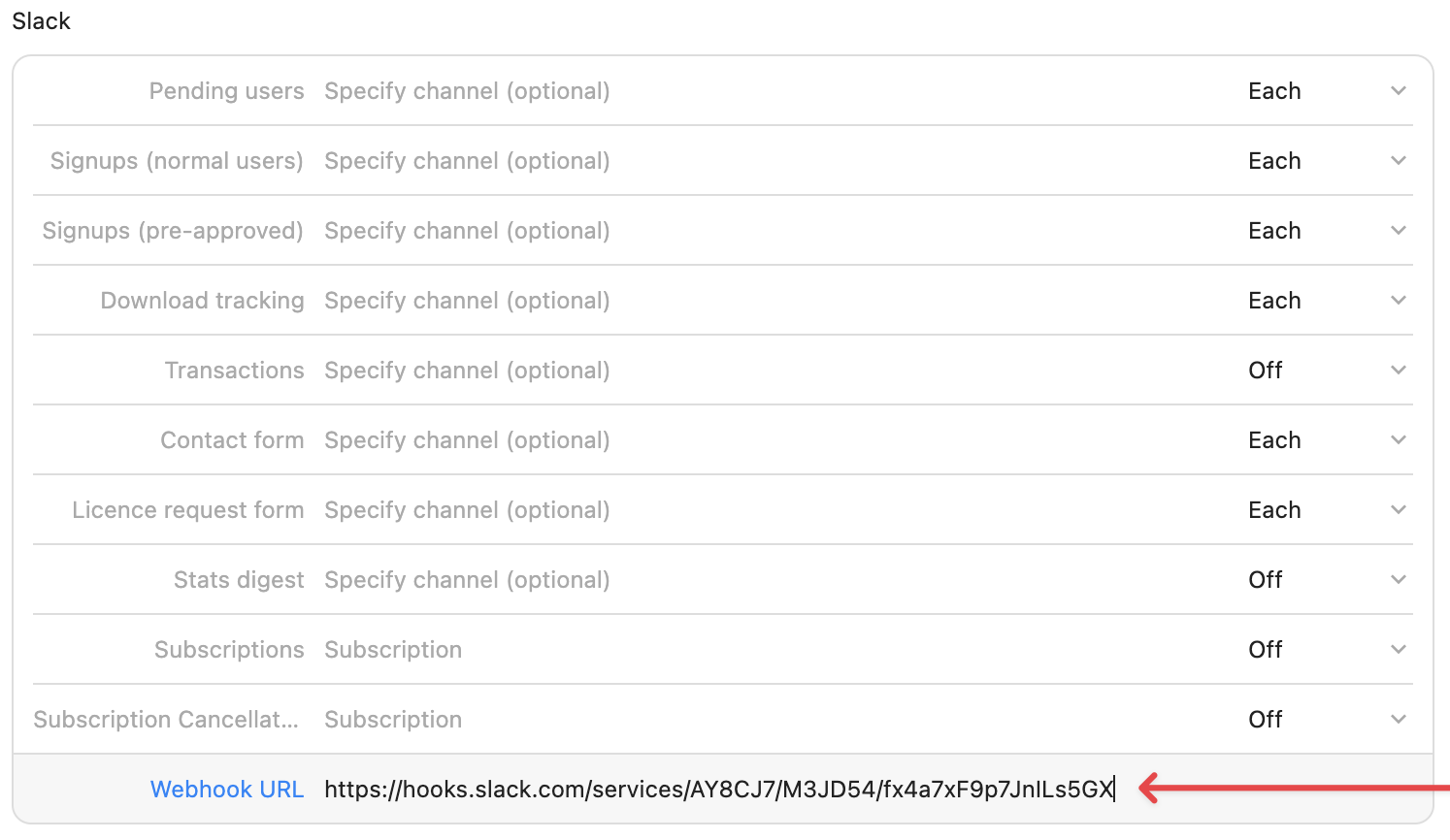
- You can now configure which notifications you’d like sent to Slack and at what frequencies. This is completely independent of your email notification settings and frequencies which allows for much more fine grained notifications via Slack if that’s what you prefer
- To send a specific notification to a specific Slack channel, add the channel name without any hash (or pound sign 🇺🇸). For example add
signupsto each notification you’d like routed to your Slack#signupschannel
Notification types
| Type | Description |
|---|---|
| Pending users | Notification sent once a user has completed the signup form and clicked the verify link they will have received. Notification is designed to alert that a pending user needs approval. |
| Signups (normal users) | Notification sent on successful signup. Redundant when Auto-approve all users is off under Settings > Access, because Pending users covers the same people. |
| Signups (preapproved) | Notification is sent on successful signup (post verify stage) if user’s email domain is in list of Pre-approved signups |
| Download tracking | Notification sent on a user download. Containing details of user and what they’ve downloaded. Useful for user/download tracking. |
| Transactions | Notification is sent on a successful licence transaction, containing user and licence details. |
| Contact form | Notification is sent containing the message from the contact form section on the site. Only applies if the contact form section is being used somewhere on the site, contact us if you’re not sure or would like a quote to have a contact page/section integrated. |
| Licence request form | Notification is sent if a custom licence form has been submitted on an item, containing the details of the form and the user, to begin the custom licensing process between you and the user in question. |
| Custom contact form | Notification sent when a custom contact form built for your site is submitted. |
| Stats digest | A periodic summary of site activity. |
| Subscriptions | A new user has subscribed to a plan. |
| Subscription Cancellation | A user has cancelled their subscription. |